

The Device page provides a comprehensive view of all endpoints such as desktops and mobile devices where the Seqrite ZTNA Agent is installed. It also displays detailed action logs that capture the most recent activities performed on the Seqrite ZTNA Agent, helping administrators monitor device behavior and security events effectively.
The page is organized into three tabs allowing users to easily navigate between device information, management options, and activity records.
Desktop
The Desktop tab displays the desktops where Agent is installed, along with key details such as the device name, mapped user, device status, agent status, version, OS edition,and last active.
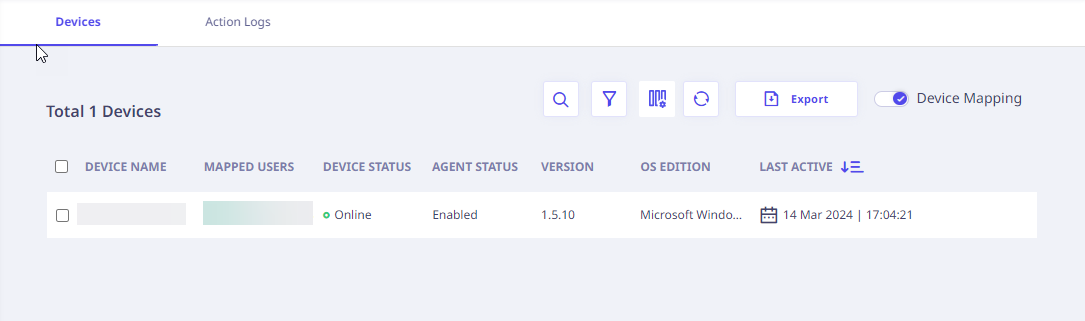
| Column Name | Description |
|---|---|
| Device Name | Device name on which the Seqrite ZTNA Agent is installed. |
| Mapped Users | Users mapped to the device. |
| Device Status | Device Status – Online/Offline. |
| Agent Status | Seqrite ZTNA Agent Status – Enabled, Disabled. |
| Version | Seqrite ZTNA Agent Version |
| OS Edition | Operating System Edition on the device on which the Agent is installed. |
| Last Active | Seqrite ZTNA Agent Last Active Timestamp. |
To export the device list, click Export.
Note ☛
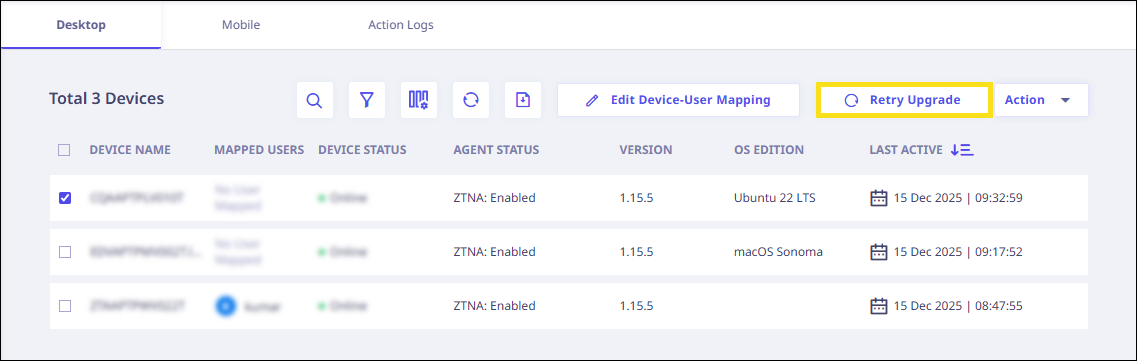
If a red mark appears next to the version number as shown in the following image, it indicates that a new agent version is available for upgrade. To proceed with upgrading the agent, select the device you wish to upgrade and click Retry Upgrade.
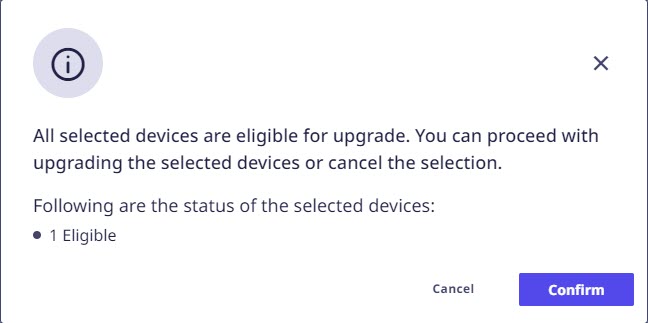
A confirmation pop-up will appear. Click Confirm to proceed.
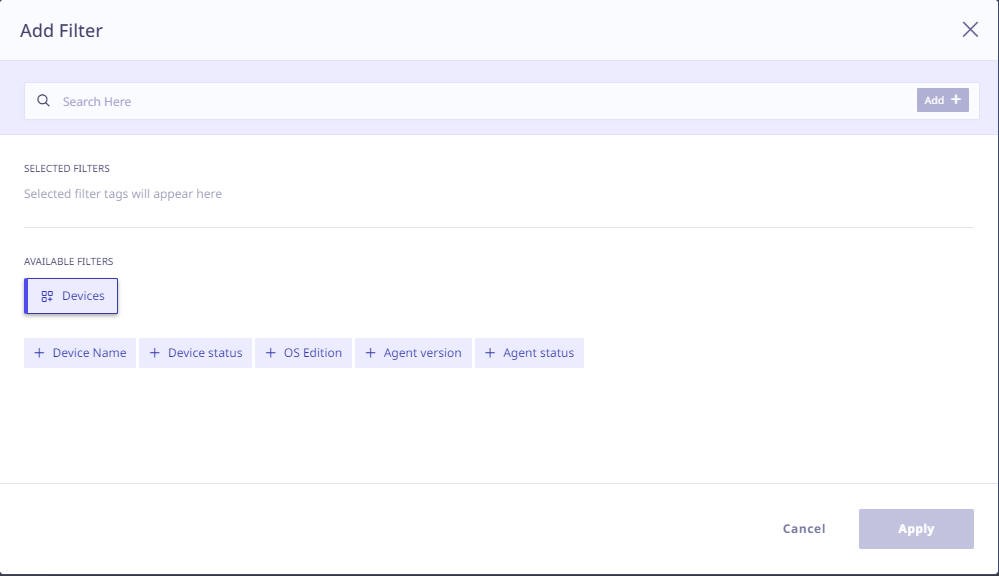
The following quick filters are available for searching devices from the Device List.
In the device list, each device record is clickable. On clicking, the right panel appears and shows the following details,
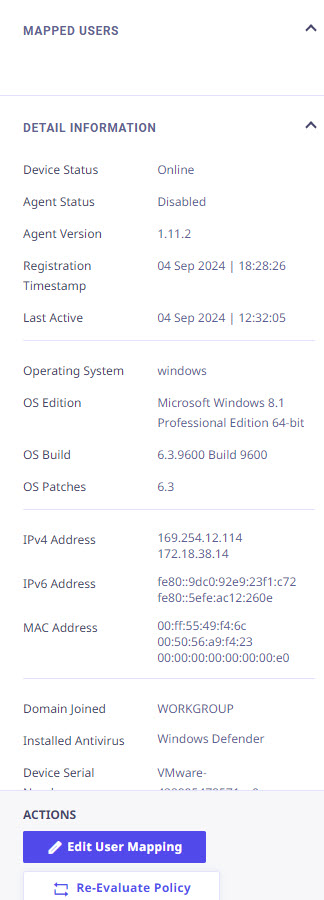
Actions available in the Right Panel
-
Edit User Mapping
The details related to User Mapping are covered in the Device Mapping Section.
-
Re-Evaluate Policy
The Device Posture Re-evaluation feature enhances the assessment process for device posture, ensuring more accurate and timely evaluations. This functionality allows administrators to re-evaluate the policies applied to selected devices more flexibly than before.
Key Features
- Granular Policy Re-evaluation: Administrators can now re-evaluate the posture of multiple devices in a single action. This contrasts with previous functionality, where Device Posture Rules (DPR) could only be applied uniformly across all devices.
- Immediate Actions: Upon re-evaluation, the system sends appropriate enable or disable actions to the selected devices. This ensures that any changes in policy are promptly reflected in device compliance.
- Action Logs: All actions taken during the re-evaluation process are recorded in the action logs. Administrators can review these logs to verify which devices received policy updates and track the outcomes of the re-evaluation.
Usage Instructions
- Select Devices: Navigate to the device management interface and select the devices you wish to re-evaluate.
- Initiate Re-evaluation: Choose the option to re-evaluate the posture. This will apply the current policies to the selected devices.
- Review Action Logs: After the re-evaluation is complete, check the action logs to monitor the status of each device and any actions taken.
Conclusion
The enhanced Device Posture Re-evaluation process provides administrators with greater flexibility and control over device compliance management. By allowing targeted policy assessments and immediate action implementation, this feature improves overall device security and management efficiency.
Device Mapping
This feature allows administrators to map specific devices to end users, restricting application access to authorized users on designated devices.
To enable Device-to-User Mapping, follow these steps:
- Click the "Device Mapping" toggle button in the top right corner of the devices page.
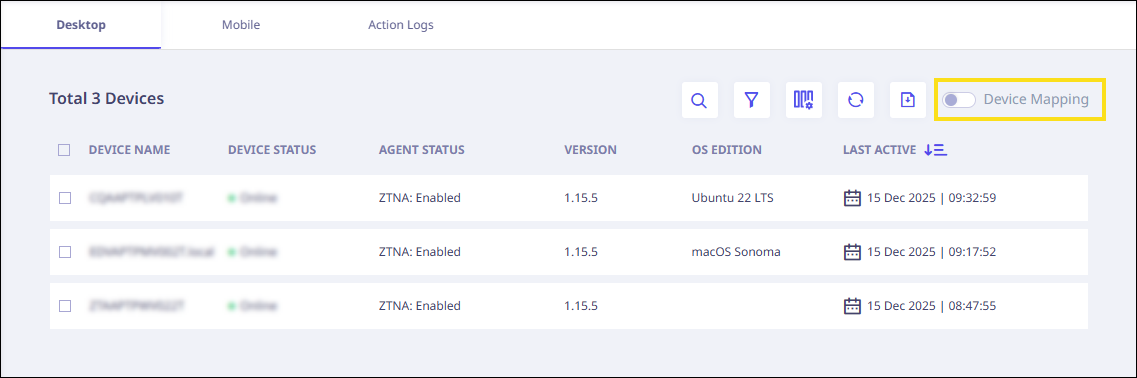
- A confirmation message will appear as follows. Click "Ok" to proceed.
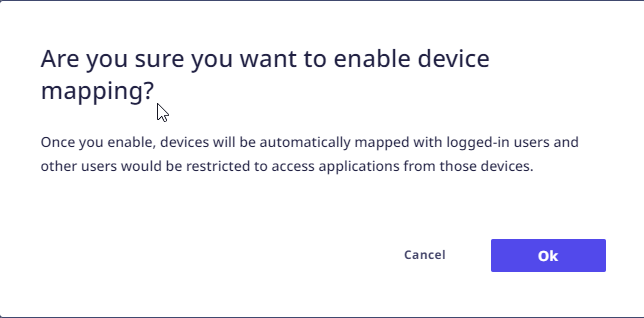
- After clicking "Ok," the mapped user column will display the name of the logged-in user as the mapped user.
You can edit Device-User mapping by 3 ways.
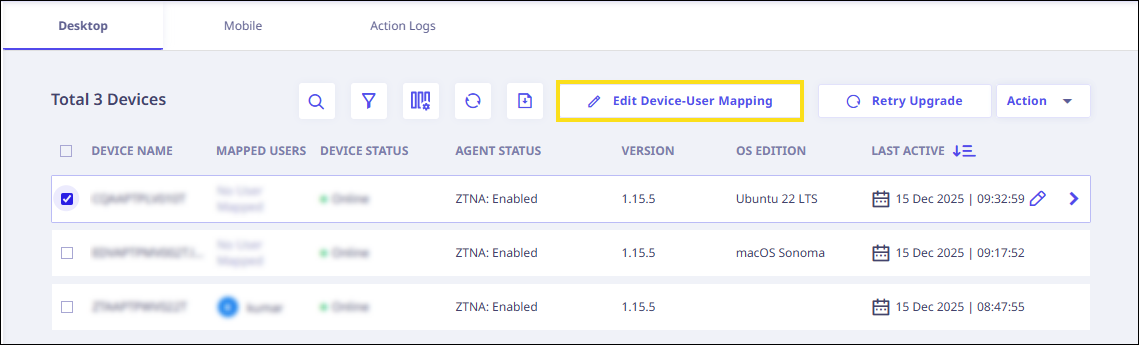
- Select the checkbox next to the devices you want to map to users.
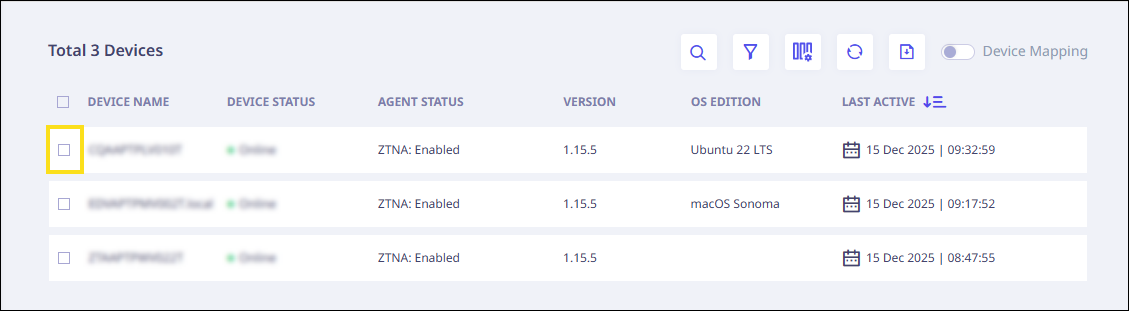
After selecting the checkbox(es), the "Edit Device-User Mapping" button will become visible. Click it.
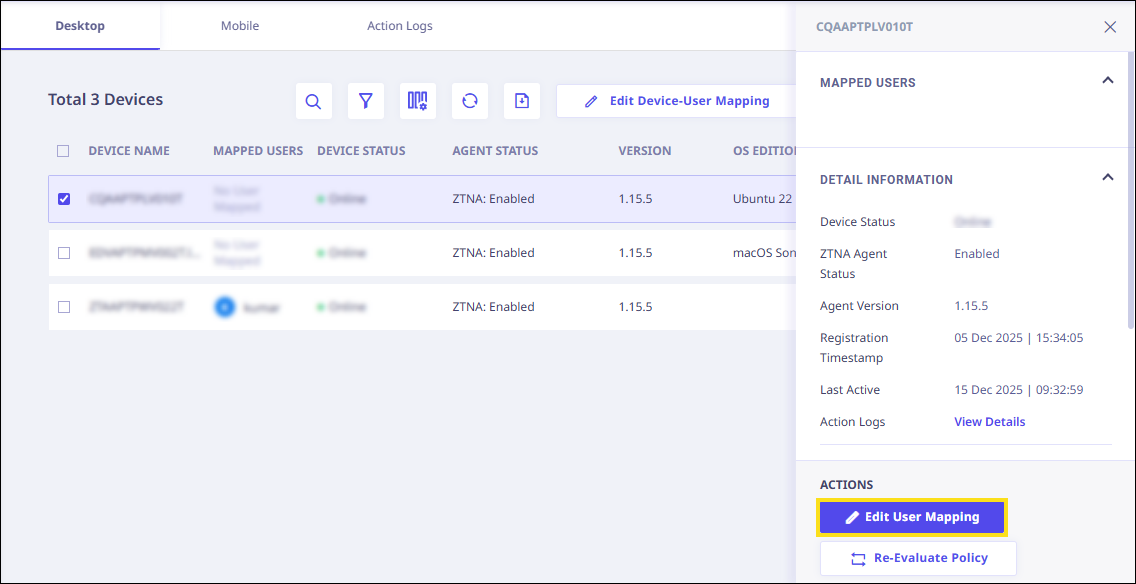
- Click on the device record to open the right panel. Once opened, locate the "Edit User Mapping" button and click it.
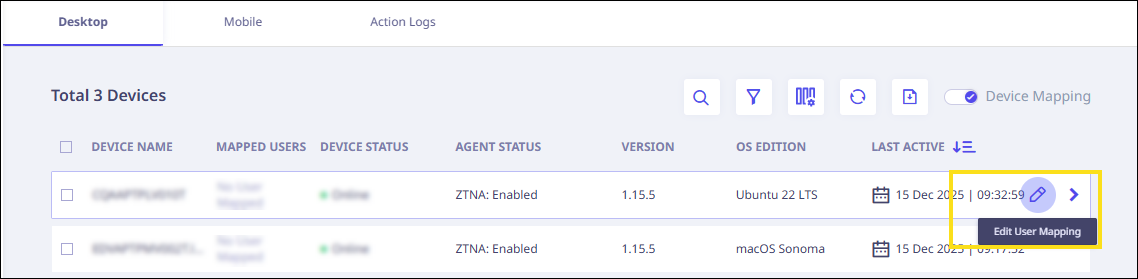
- Hover over the device record to access the "Edit User Mapping" option, then click it.
- Select the checkbox next to the devices you want to map to users.
- A modal will appear after any click event triggered by the above three methods, displaying the selected devices.
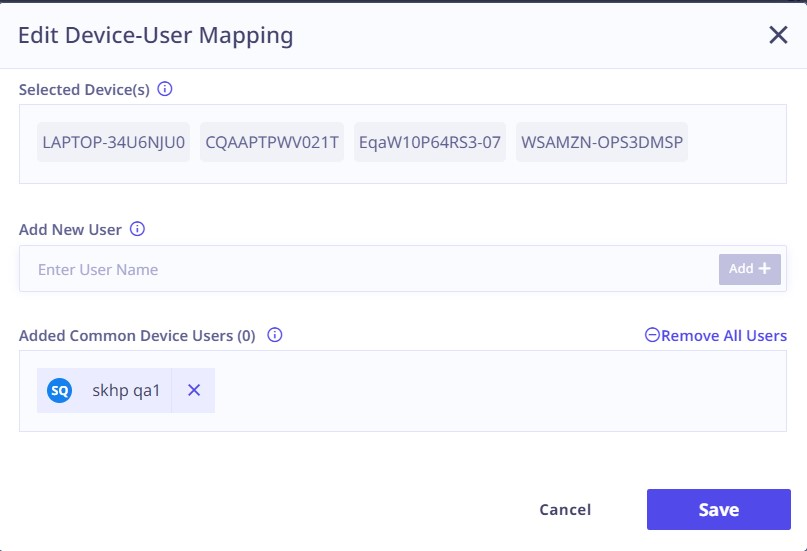
- Clicking the text area underneath the “Add New User” label will show a list of users. From there, select the desired user and proceed to click the “Add+” button.
- You will see a list of all the added users common to all selected devices under the label "Added common device users."
- Review the mappings and click "Save" to save all the mappings.
You can edit user mapping from two places:
Note ☛
When you disable this feature, devices will no longer be mapped with logged-in users allowing all users to access applications from those devices without restrictions.
Mobile
The Mobile tab displays the mobile devices (Android and iOS) where Seqrite ZTNA mobile application (agent) is installed, along with key details such as the device name, reference ID, agent status, version, OS edition,and last logged in.
Note: To activate or enable the mobile application, connect to the account manager.
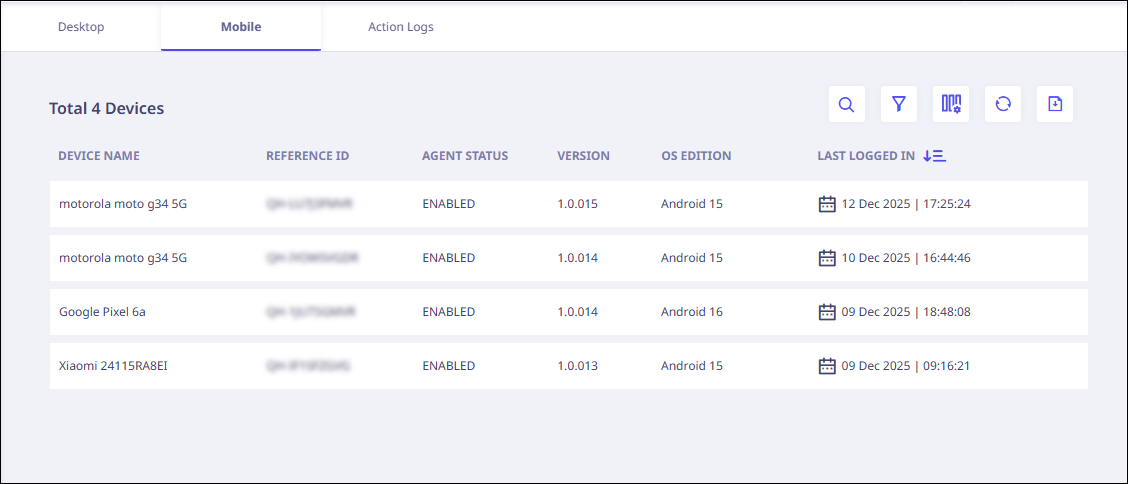
| Column Name | Description |
|---|---|
| Device Name | Device name on which the Seqrite ZTNA Agent is installed. |
| Reference ID | |
| Agent Status | |
| Version | Seqrite ZTNA Agent Version |
| OS Edition | Operating System Edition on the device on which the Agent is installed. |
| Last Active | Seqrite ZTNA Agent Last Active Timestamp. |
Action Log
The Action Log Tab provides a detailed overview of the recent activities carried out on the Seqrite ZTNA Agent, in a tabular format as follows,
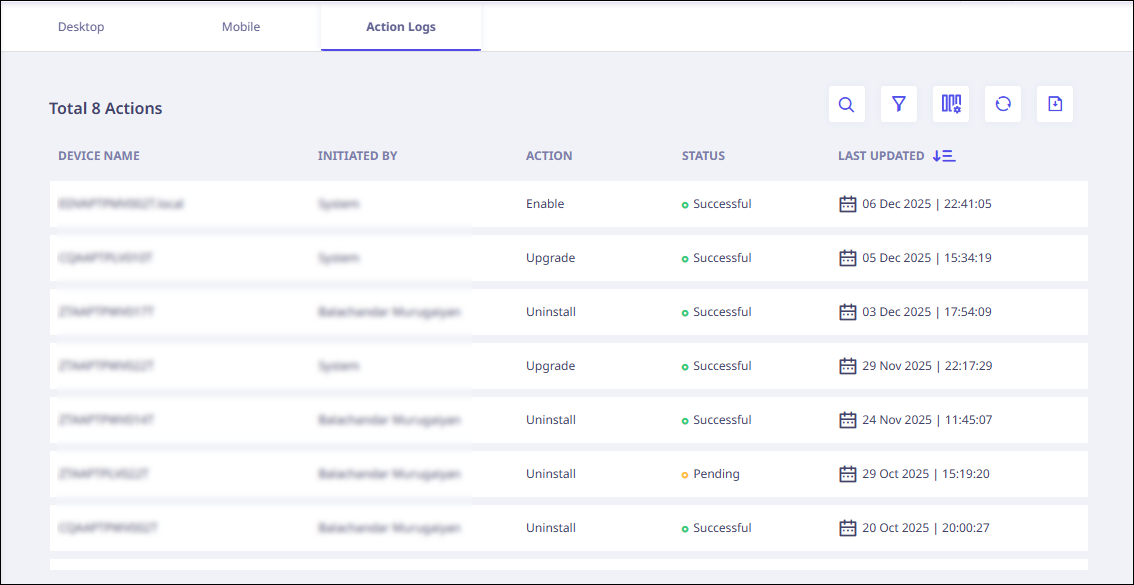
| Column Name | Description |
|---|---|
| Device Name | Device name on which the Seqrite ZTNA Agent action is performed. |
| Initiated By | Who initiated the Agent action – System/User Name. |
| Action | An action performed on the Agent – Uninstall/Upgrade/Enable/Disable. |
| Status | The status of the action taken against the Agent Sent/Pending/Successful/Cancelled/Fail/Expired. |
| Last Updated | Action and Status change Timestamp. |
To export the action logs in CSV format, click Export.
The following quick filters are available for searching action records from the Action Logs.
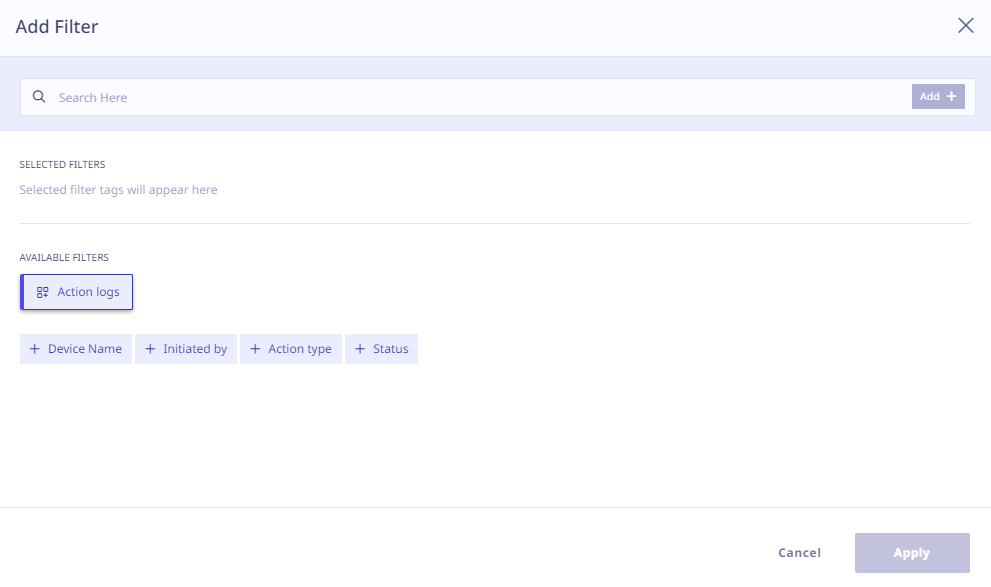
In the action logs list, each action log record is clickable. On clicking, the right panel appears and shows the following details,
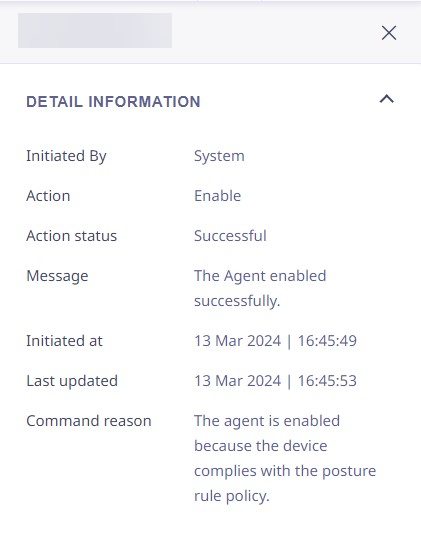
For devices that fail the device posture check and become non-compliant, the agent is disabled. Clicking on such a device reveals the failed parameters for the device posture check in the right panel, as depicted in the following image.
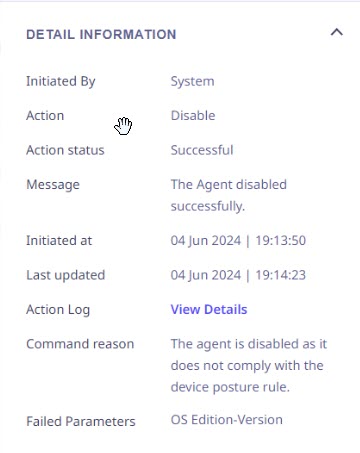
When you click the “View Details” link next to the Action Log field, a modal popup appears, displaying both the current and past action logs associated with the selected device. You also have the option to export this action log for further use.