

Seqrite ZTNA Mobile Application is an endpoint agent installed on your iOS devices enables to access enterprise applications from mobile devices. By installing the Seqrite ZTNA mobile application, the mobile device becomes a trusted endpoint that can securely connect to corporate resources. Thus, without the Seqrite ZTNA mobile application installed, you cannot use Seqrite ZTNA to safely access agent-based apps from your Android devices.
Following are the steps to install the Seqrite ZTNA mobile application on Android devices:
- Download the Agent App
- Go to the Google Play Store.
- Search for the Seqrite ZTNA Mobile application.
- Install the App
- Tap Install.
- Wait for the app to finish downloading and installing.
- Open the App.
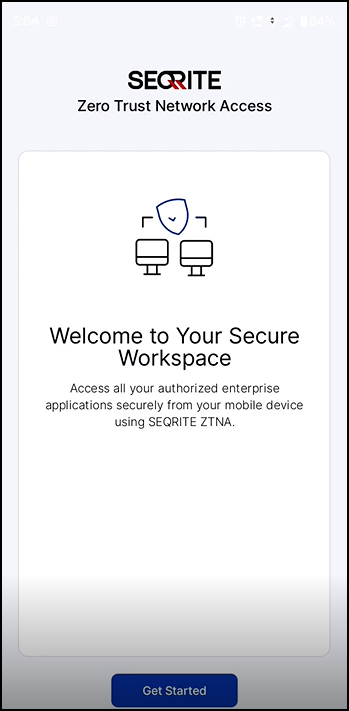
- Click Get Started.
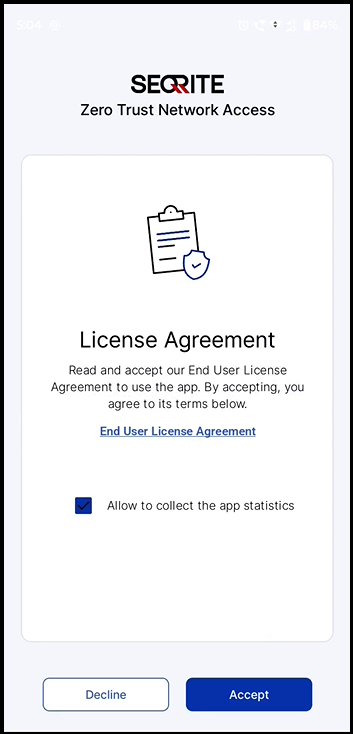
- Select the Allow to collect app statistics checkbox and tapAccept.
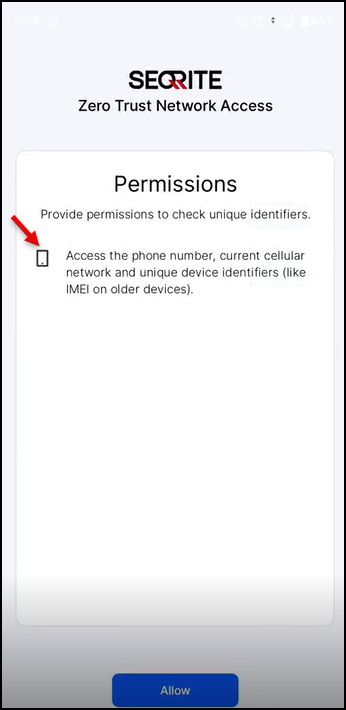
The Permissions page appear. - Select the checkbox to provide the permission to to check unique identifier and tap Allow.
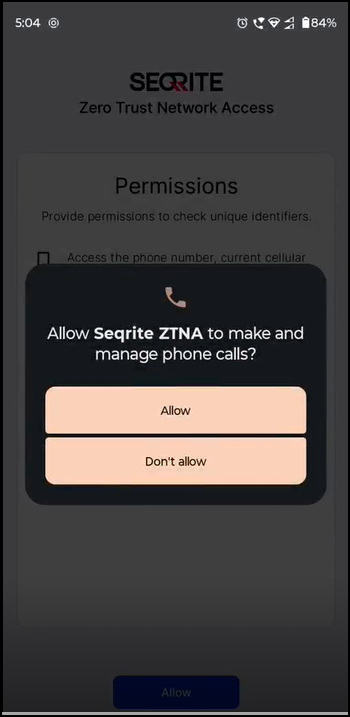
- Tap Allow to allow Seqrite ZTNA to make and manage phone calls.
- Sign In / Register
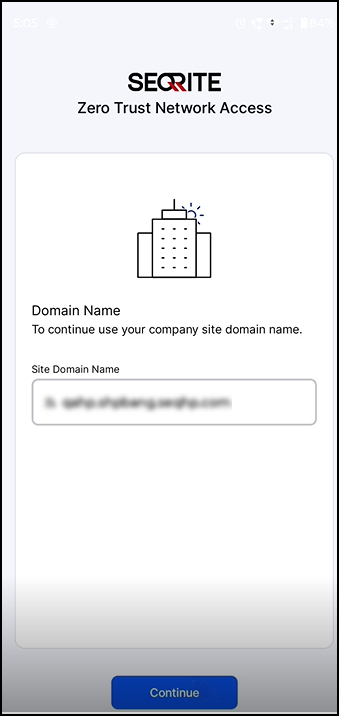
- Enter the site domain name to sync with the required ZTNA tenant/gateway and tap Continue.
The end user login page is displayed.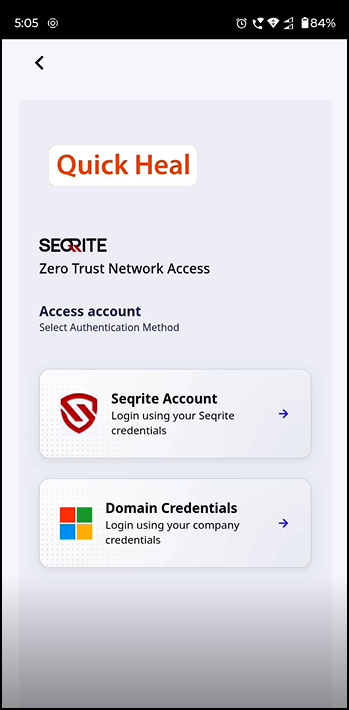
- Choose the appropriate account, enter your corporate credentials and tap Sign in.
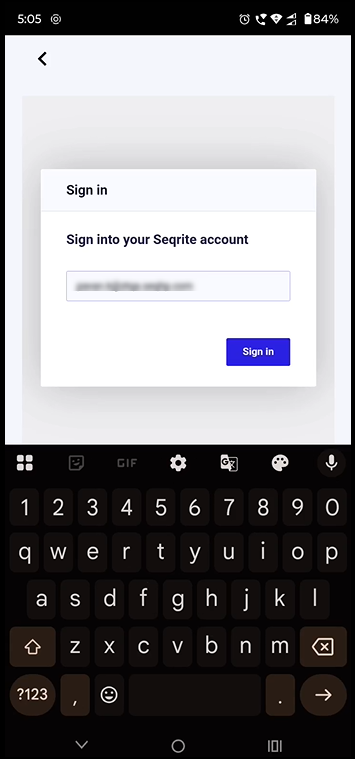
You will receive an OTP. - Enter the OTP and tap Verify.
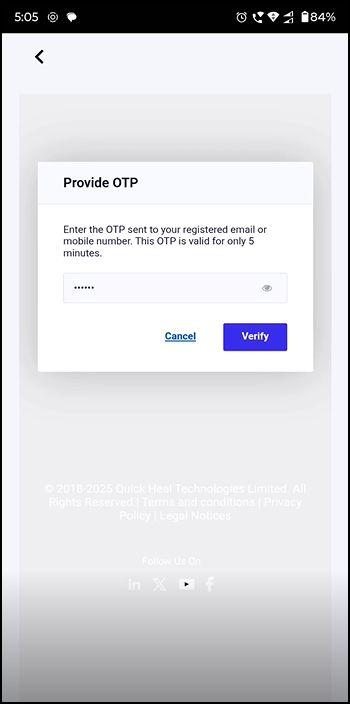
After authentication, ZTNA Home page opens where you need to enable the toggle to gain access to enterprise applications.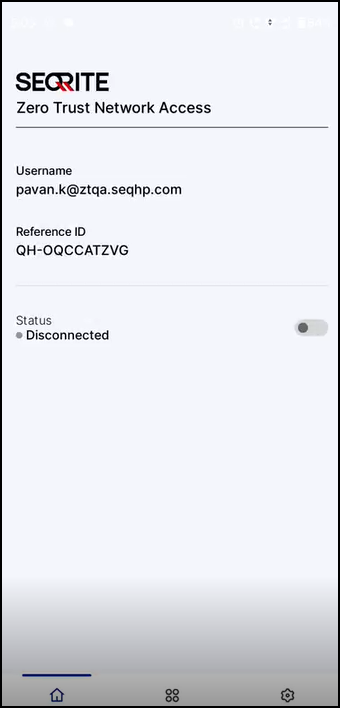
- Switch the toggle to Connected.
- Tap OK on Connection request popup.
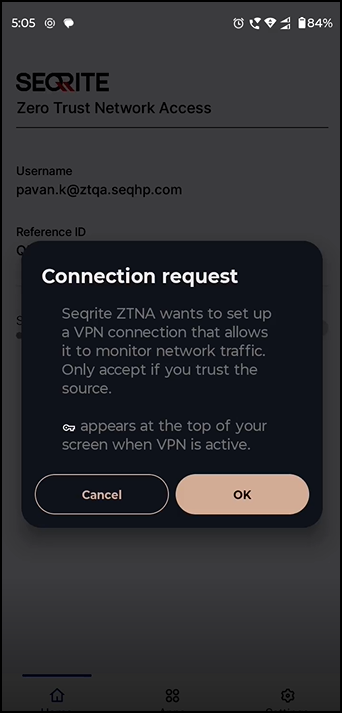
Seqrite ZTNA connection is established.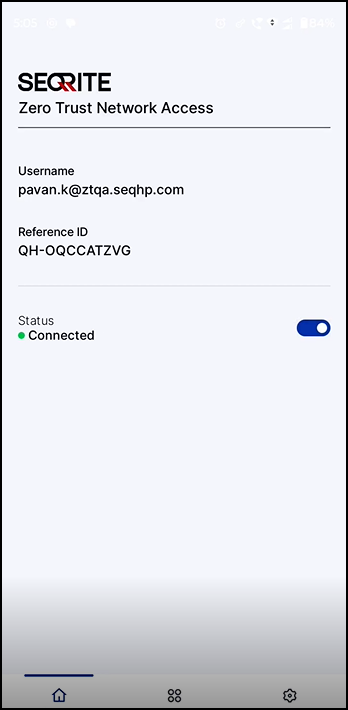
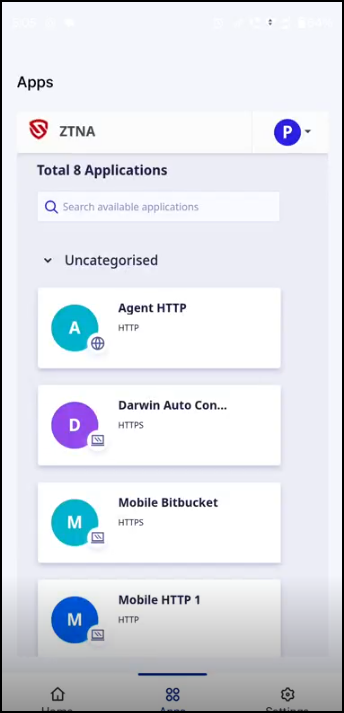
On ZTNA page, the application list is displayed.
-
The Seqrite ZTNA mobile application will launch on device’s home screen.
The Welcome page opens for authentication.
On the License Agreement page, you can read the license agreement on tapping End User License Agreement.