

You can add apps from the Google Play Store across all three modes, while Custom Apps for AMA-enrolled devices. From the Google Play Store, following types of apps are available to add:
Add Apps from Google Play Store
To add Google Play Store Apps, follow these steps:
- Log on to Seqrite EMM console and in the left pane, click Apps > Configuration.
- On the App Configurations page, select the configuration and click edit icon.
- Click the Android App Management tab and click Application Management.
- Click Add Apps and select Google Play Store.
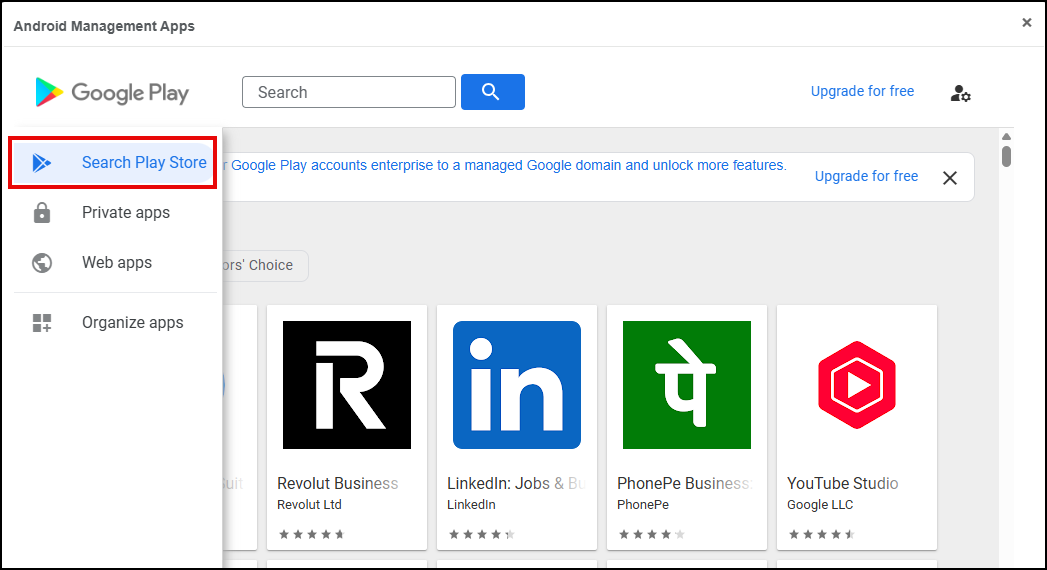
Android App Management screen appears. - Click Search Play Store App.
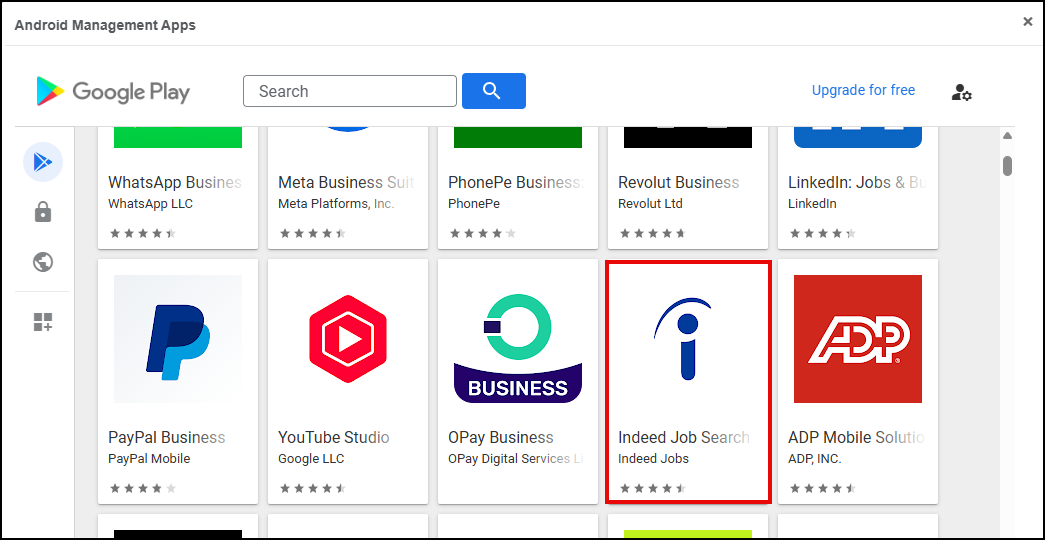
- Select the app you want to add and click Select.
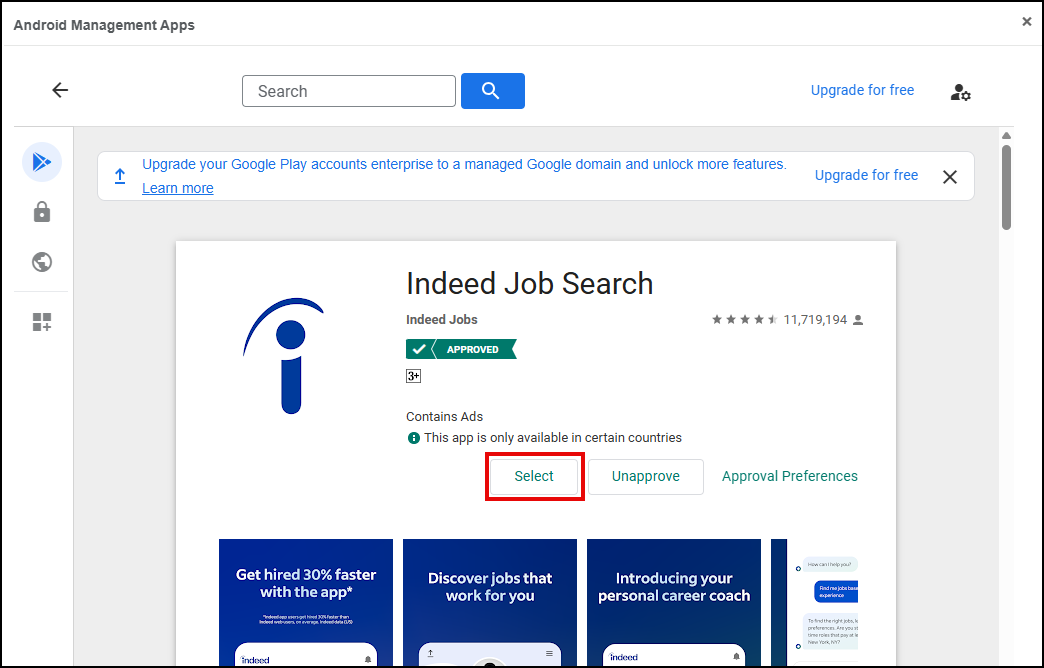
- After configuration and setting app permissions, click OK.
Android App Management screen appears.
This allows admin and device users to control each app and make device flexible and secure.
To learn more about android application management configuration. refer to Android Application Management Configuration.
The app is added.
Add Private Apps from Google Play Store
You can add custom apps from Google Play Store through Private Apps.
To add Private Apps(custom apps) from Google Play Store, follow these steps:
- Log on to Seqrite EMM console and in the left pane, click Apps > Configuration.
- On the App Configurations page, select the configuration and click edit icon.
- Click the Android App Management tab and click Application Management.
- Click Add Apps and select Google Play Store.
Android App Management screen appears. - Click Private apps.
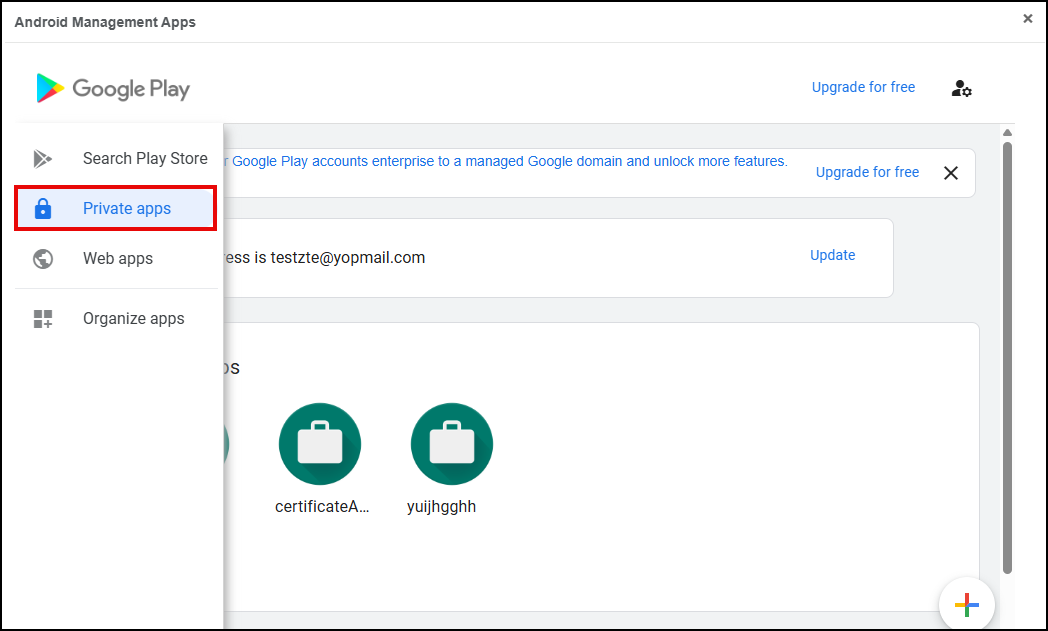
- Click Plus (+), enter Title, upload APK and upload .apk or .abb file for installation on the user device and click Create.
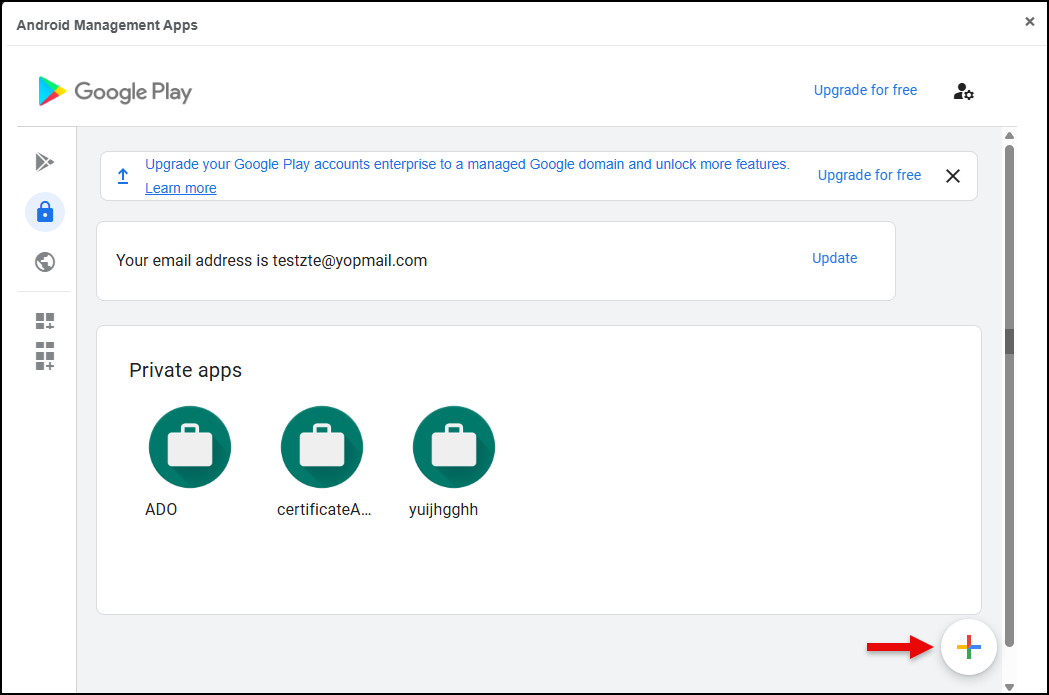
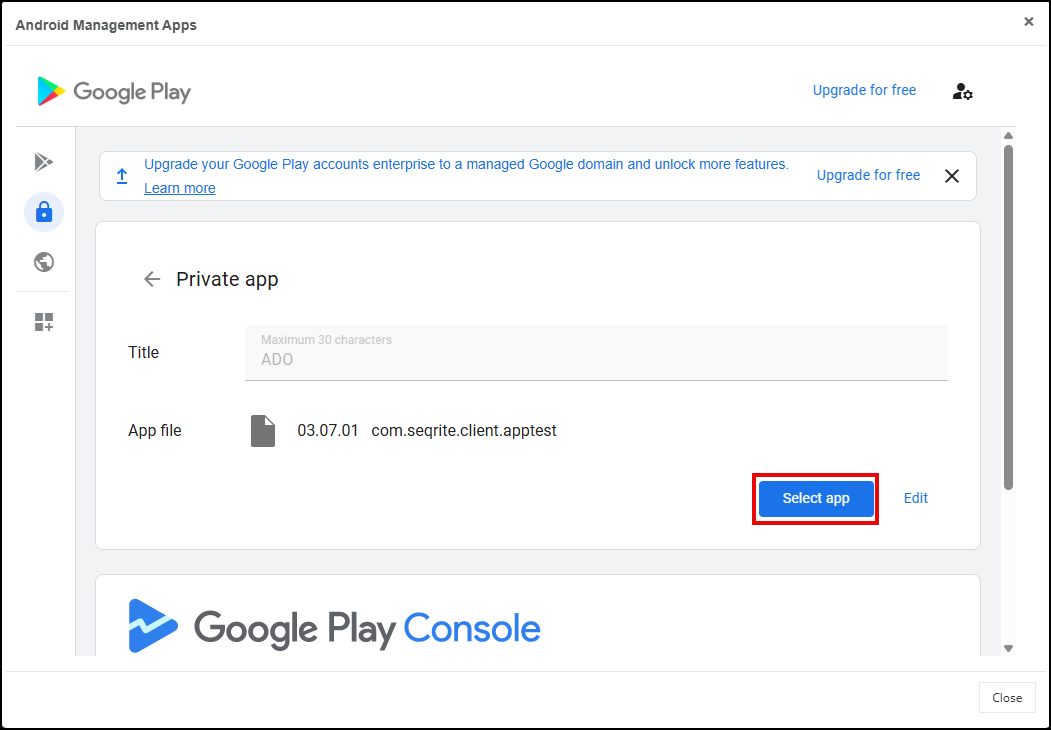
- Click the app icon and click Select app.
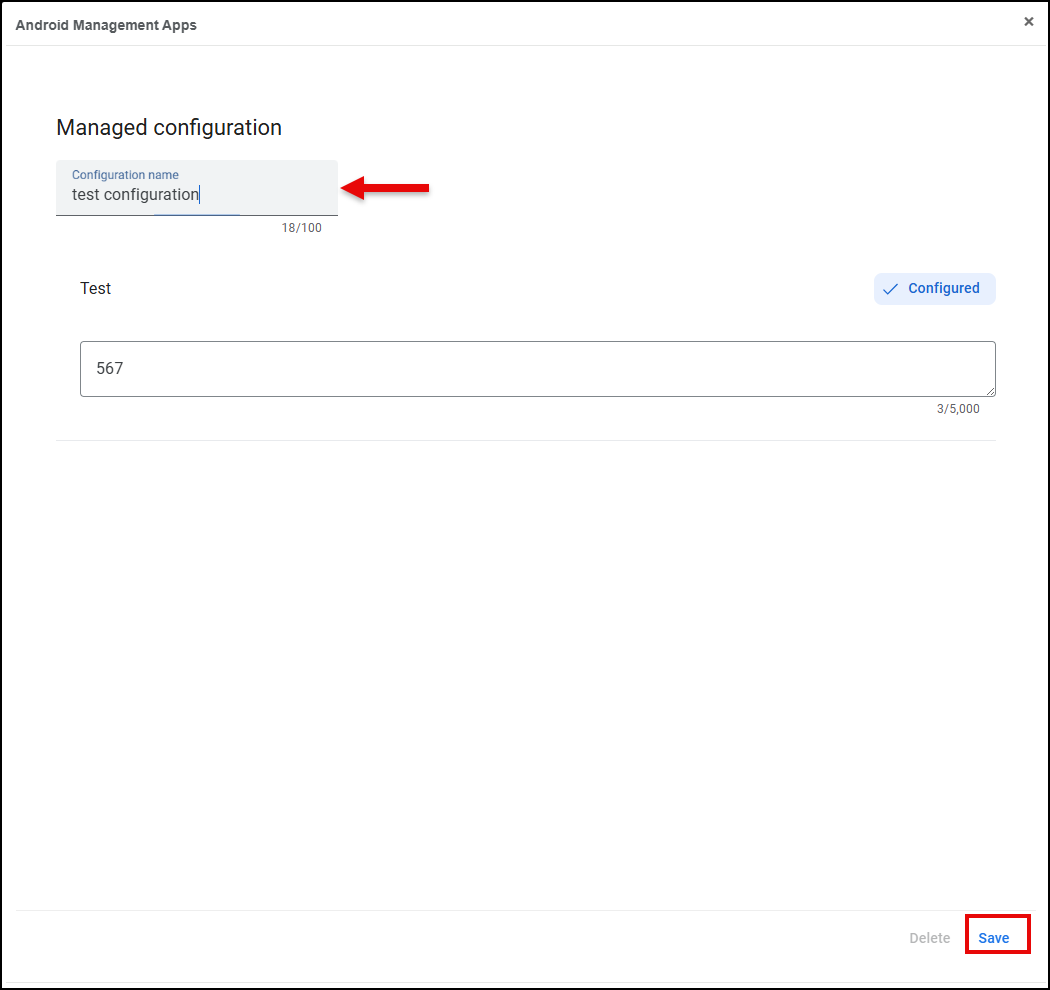
- Enter Configuration name and click Save.
- After configuration and setting app permissions, click OK.
The app will be visible in Private appslist.
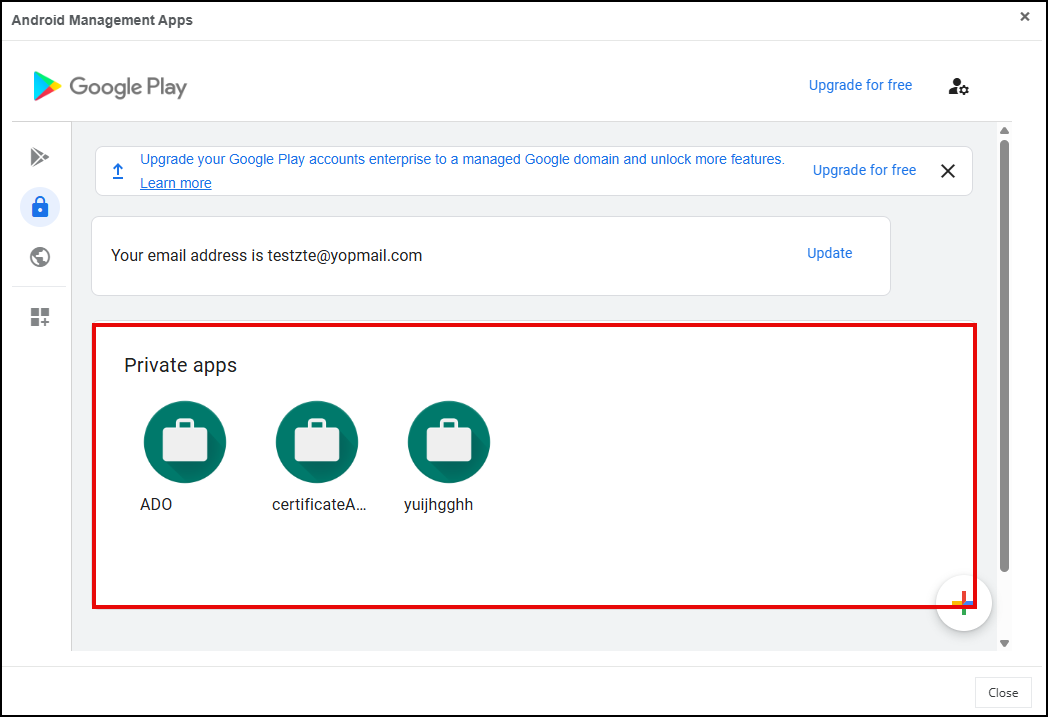
Android Management Apps screen appears.
The app is added.
Add Web Apps from Google Play Store
To add Web apps from Google Play Store, follow these steps:
- Log on to Seqrite EMM console and in the left pane, click Apps > Configuration.
- On the App Configurations page, select the configuration and click edit icon.
- Click the Android App Management tab and click Application Management.
- Click Add Apps and select Google Play Store.
Android App Management screen appears. - Click Web apps.
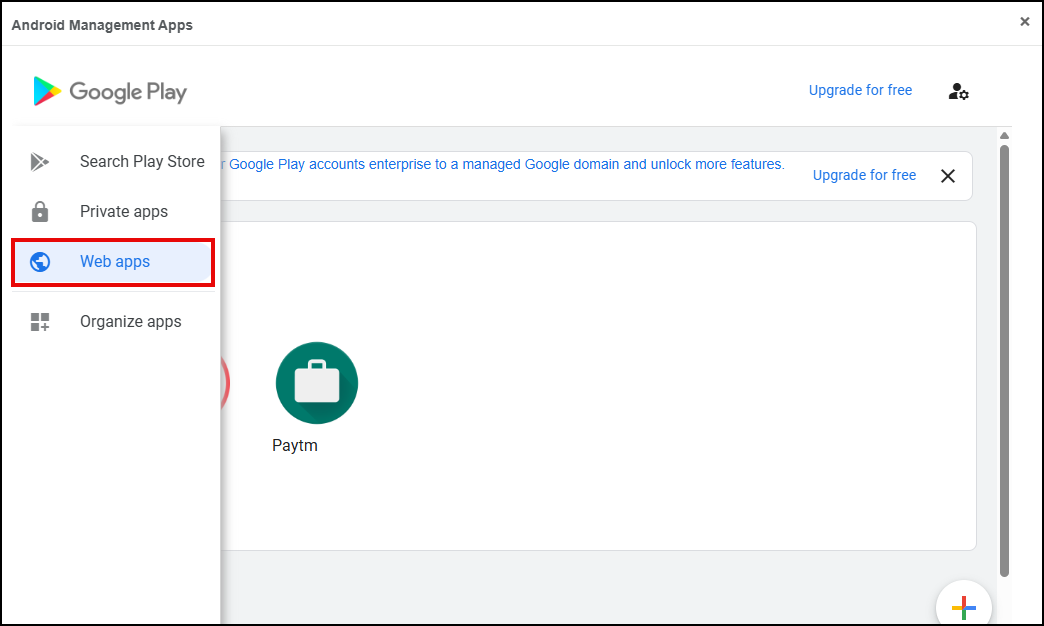
- Click Plus (+), enter Title, URL, select display type from full screen, standalone and minimal UI, upload icon and click Create.
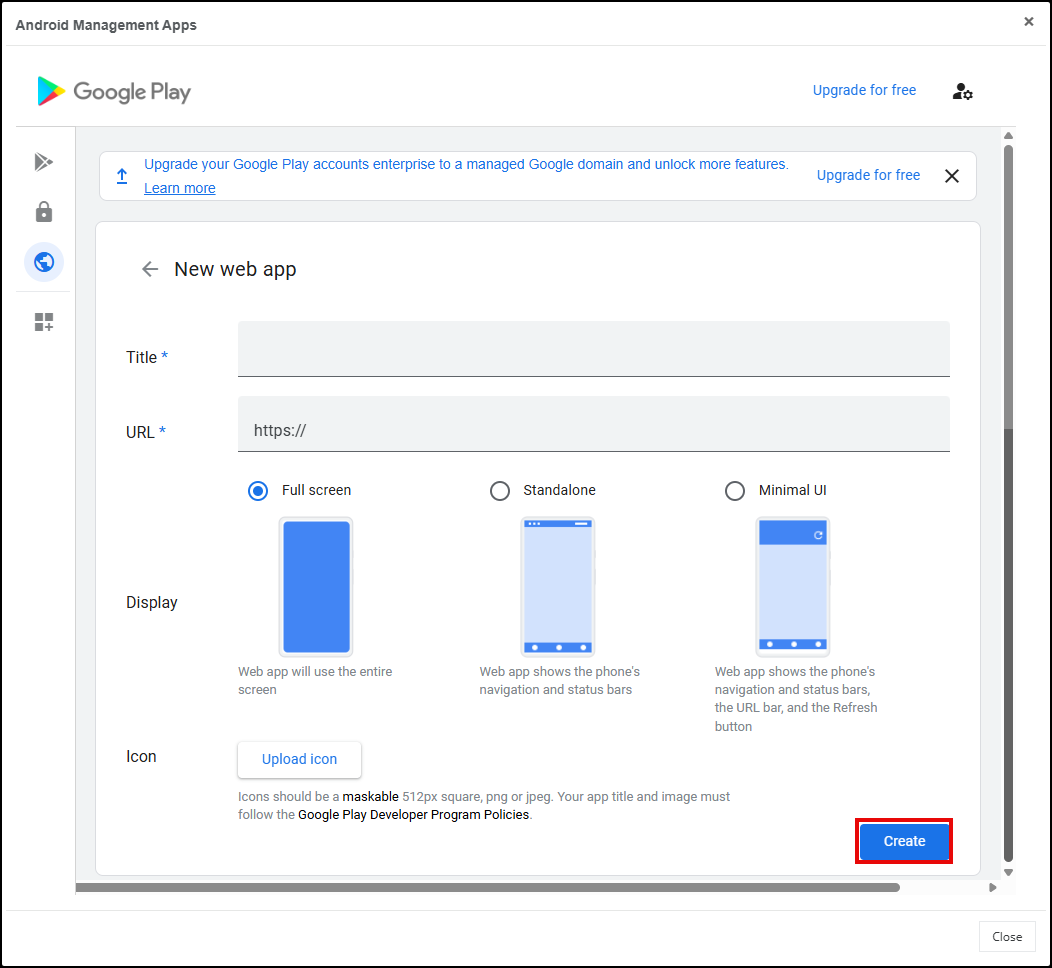
- Click the app icon and click Select app.
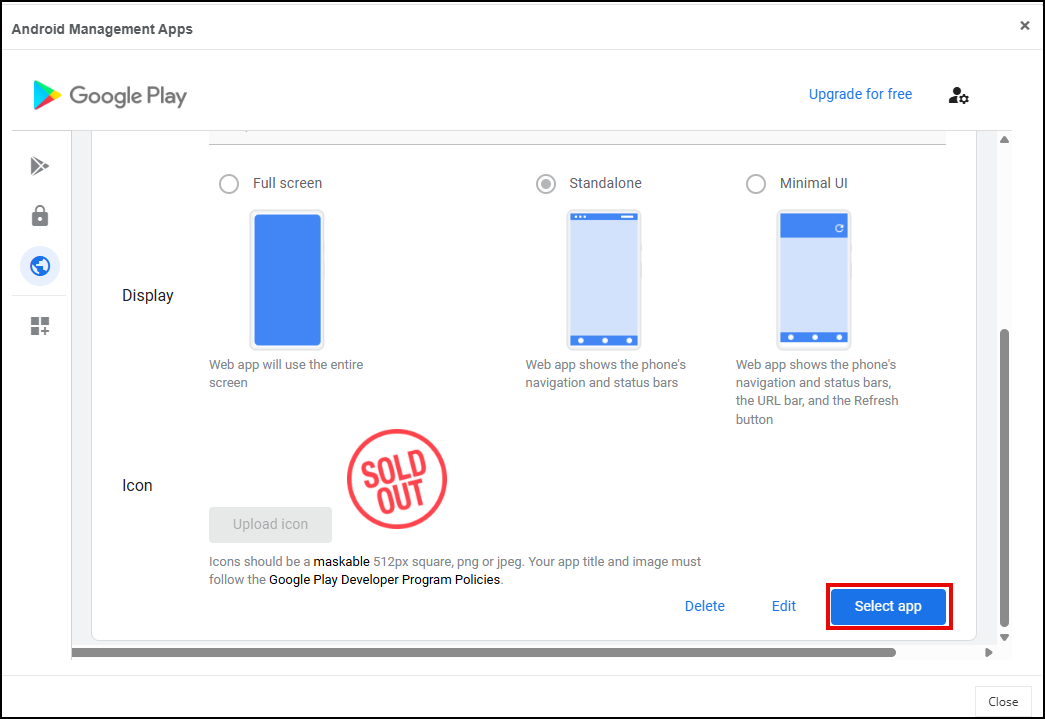
- After configuration and setting app permissions, click OK.
The app is added.
The app will be visible in Web apps list.
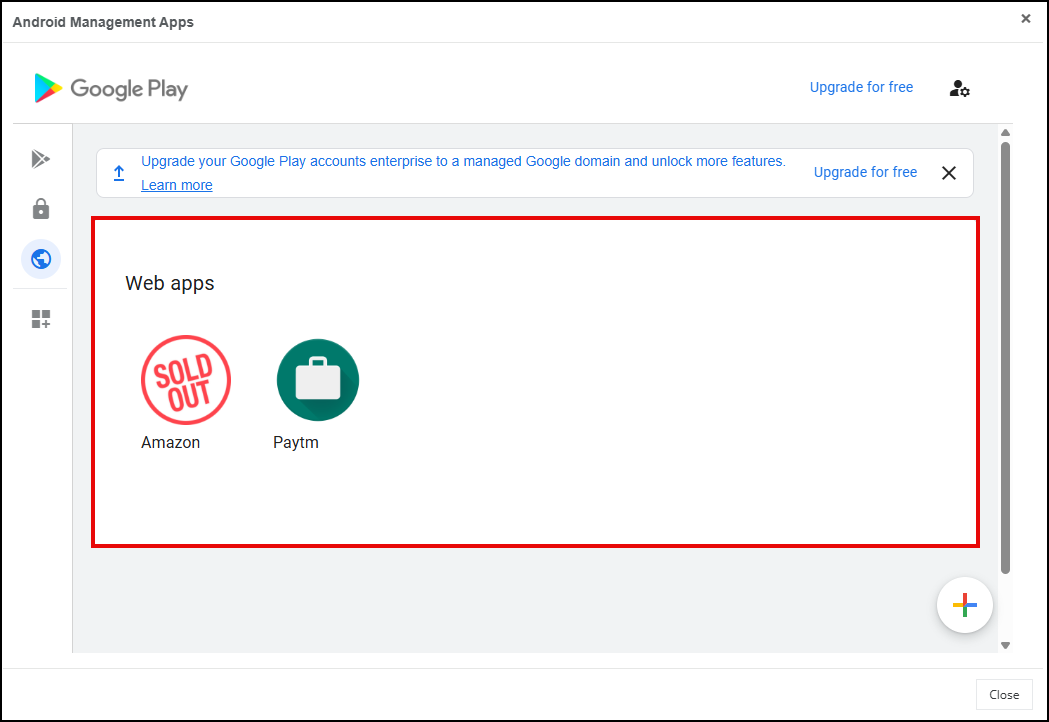
Android Management Apps screen appears.
Add Custom Apps
Pre-requisite: You have to add custom apk first in app store to add custom apps.To learn more, refer to Adding Apps Using Upload Custom APK.
You can also push the specific version of a custom app on devices. To know more about pushing app version on a device refer to, Pushing a Custom App Version on Devices.
To add custom apps, follow these steps:
- Log on to Seqrite EMM console and in the left pane, click Apps > Configuration.
- On the App Configurations page, select the configuration and click edit icon.
- Click the Android App Management tab and click Application Management.
- Click Add Apps and select Add Custom Apps.
Add Custom Appspop-up appears with the list of available custom apps.
- Select the app you want add and click Add Apps.
The app is added.
Once the app is added, message will appear on agent/user device to install the app.
Note:
- On Samsung KNOX AMA devices running Android 14 or below, the custom app will be downloaded and installed silently. On other devices, users will receive a message to install the app.
- In case of app upgrade, admin have to add upgraded version and push it again on device/agent.
- After an app upgrade, the admin must upload the updated version and push it to the device/agent.
Pushing a Custom App Version on Devices
Pre-requisite: You have to add custom apk versions first in app store. To learn more, refer to Adding Multiple Versions of a Custom App.
To push custom app version, follow these steps:
- Log on to Seqrite EMM console and in the left pane, click Apps > Configuration.
- On the App Configurations page, select the configuration and click edit icon.
- Click the Android App Management tab and click Application Management.
- Click Add Apps and select Add Custom Apps.
- Click the app. Apps version is displayed.
- Choose the app version and click Add Apps.
- Click Save.
Add Custom Apps pop-up appears with the list of available custom apps.
The app version will be pushed to devices.
Important:
- This feature is only for AMA devices.
- Custom app APK versions remain available in the App Store only until the last Wednesday of each month after upload. If the version has not been pushed to devices within that period, the APK must be re‑uploaded to the App Store.
- Once a custom app is pushed, device users/the EMM agent must manually install the APK from the App Control section.
- If a device has a higher version of an app installed and a lower version is pushed, user have to uninstall the higher version have to install the lower version APK. The same behavior applies in reverse when switching from a lower version to a higher version.
Adding Device System Apps
Admin can install device system apps for Android Kiosk Mode and Custom Kiosk Mode (system apps that are available on the device).
To add device system apps:
- Click Application Management.
- Select the mode that is either Android Kiosk Mode or Custom Kisok Mode.
- Click Device System Apps tab.
- Click Add System Apps.
- Select the app/apps from Add Device System Apps to Kiosk list and click Add Apps.