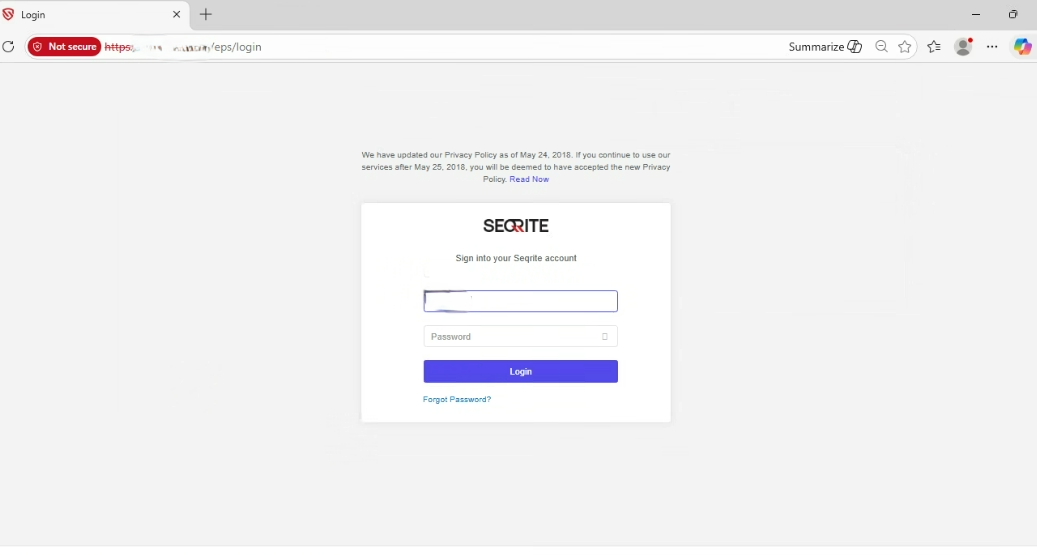
This page describes how to activate EPP 8.5 and how to resolve common activation issues.
Prerequisites
Before you start, make sure that:
- EPP 8.5 is installed successfully.
- You have a valid product key.
Activate EPP 8.5
1. Enter the Product Key
- Open the EPP 8.5 application.
- On the activation screen, enter your product key.
- Select Next.
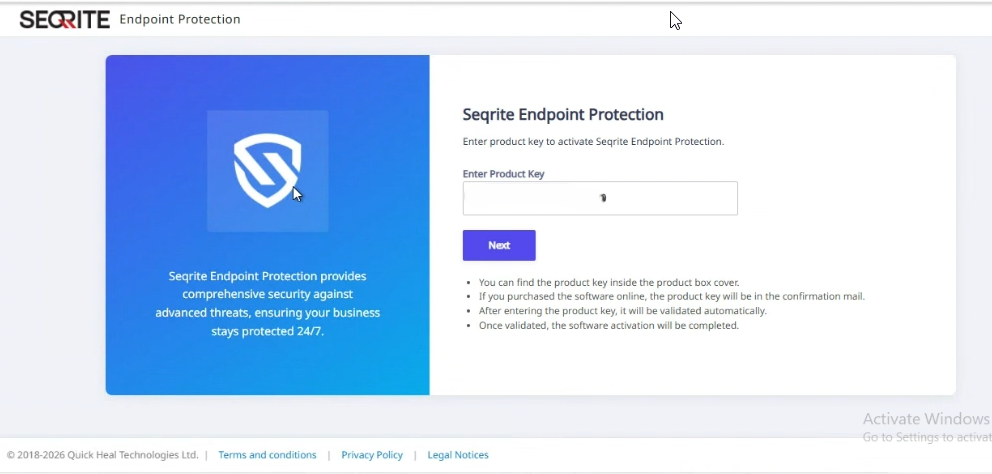
EPP 8.5 supports two types of product keys:
- Bulk activation key
- Paper license key
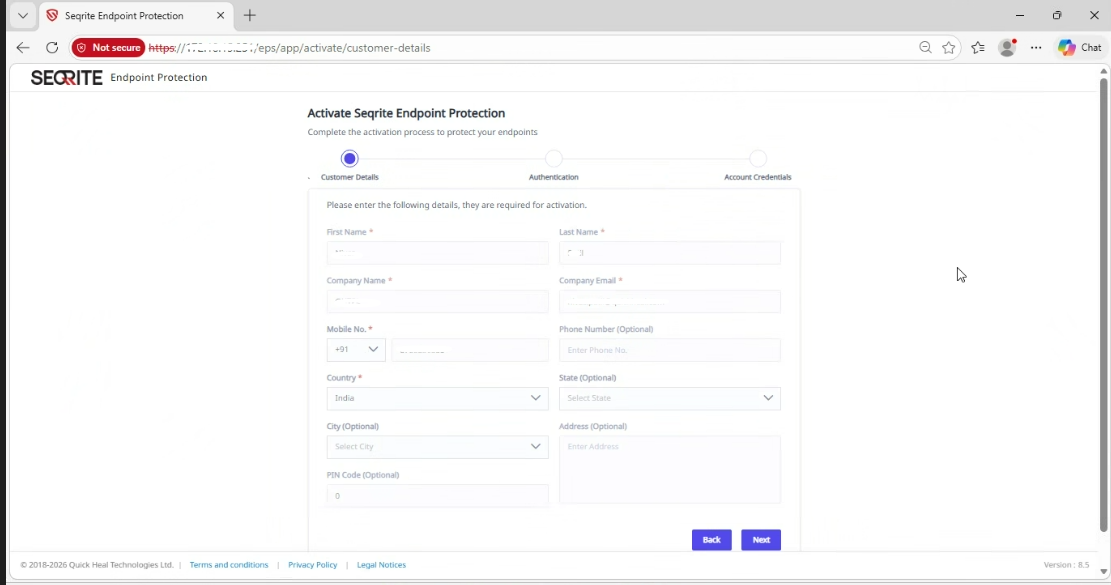
After you enter the key, the Customer Details page opens.
2. Enter Customer Details
The fields available for editing depend on the type of key you entered.
Bulk Activation Key
- All fields are editable.
- Enter all customer information manually.
Paper License Key
- The Company name and Email ID fields are prefilled and locked to edit.
After entering the required information, select Next.
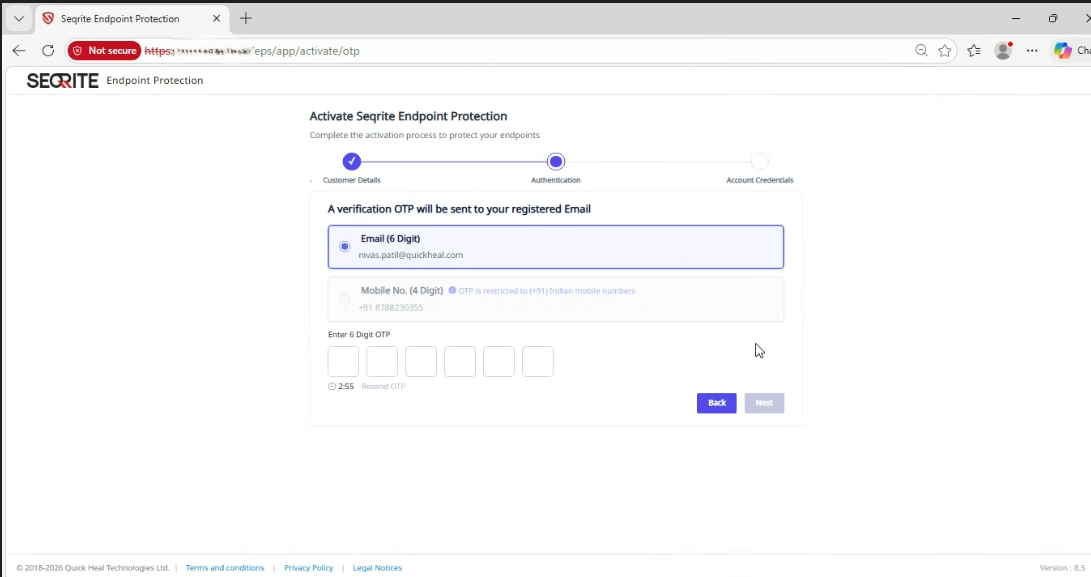
3. Complete OTP Verification
EPP sends a one-time password (OTP) to:
- The email address you provided.
- Your mobile number (Indian mobile numbers only).
Enter the OTP to continue.
4. Create Administrator Credentials
After OTP verification:
- Enter the administrator email address.
- Create a password.
- Select Next.
These credentials are required for future login.
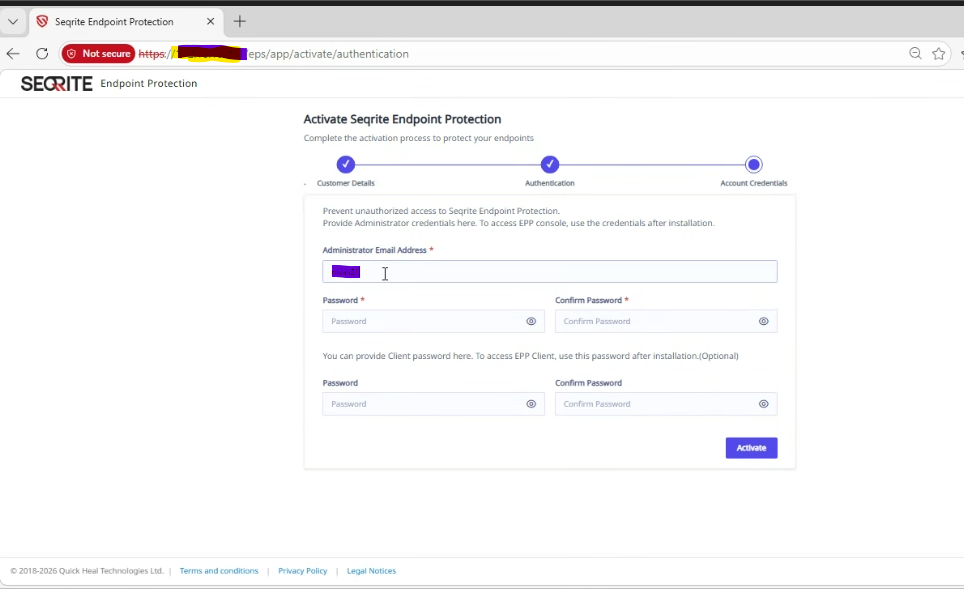
Click the Activate button to activate your Seqrite EPP instance.
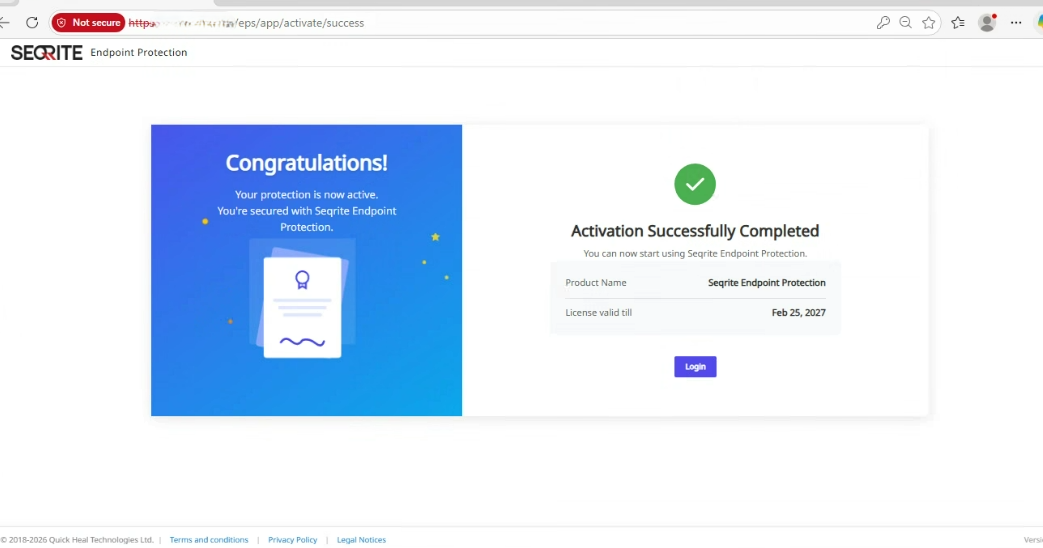
5. Sign In
- When activation is complete, the login screen appears.
- Use the administrator credentials you created to sign in.
- If you enter the wrong OTP three times, or enter an incorrect mobile number, the activation process is suspended for 30 minutes.
- You must wait for the suspension period to end before you can retry.
- If you restart the activation process with the same product key, the fields in the activation flow are not editable.
- This behavior is expected and designed to protect product key usage.