

Follow these steps to configure Darwinbox as a Connector:
- In the left navigation pane, click Discovery and Classification and then click Connectors.
- Select DarwinBox from the configured data source list, and then click Add Instance.
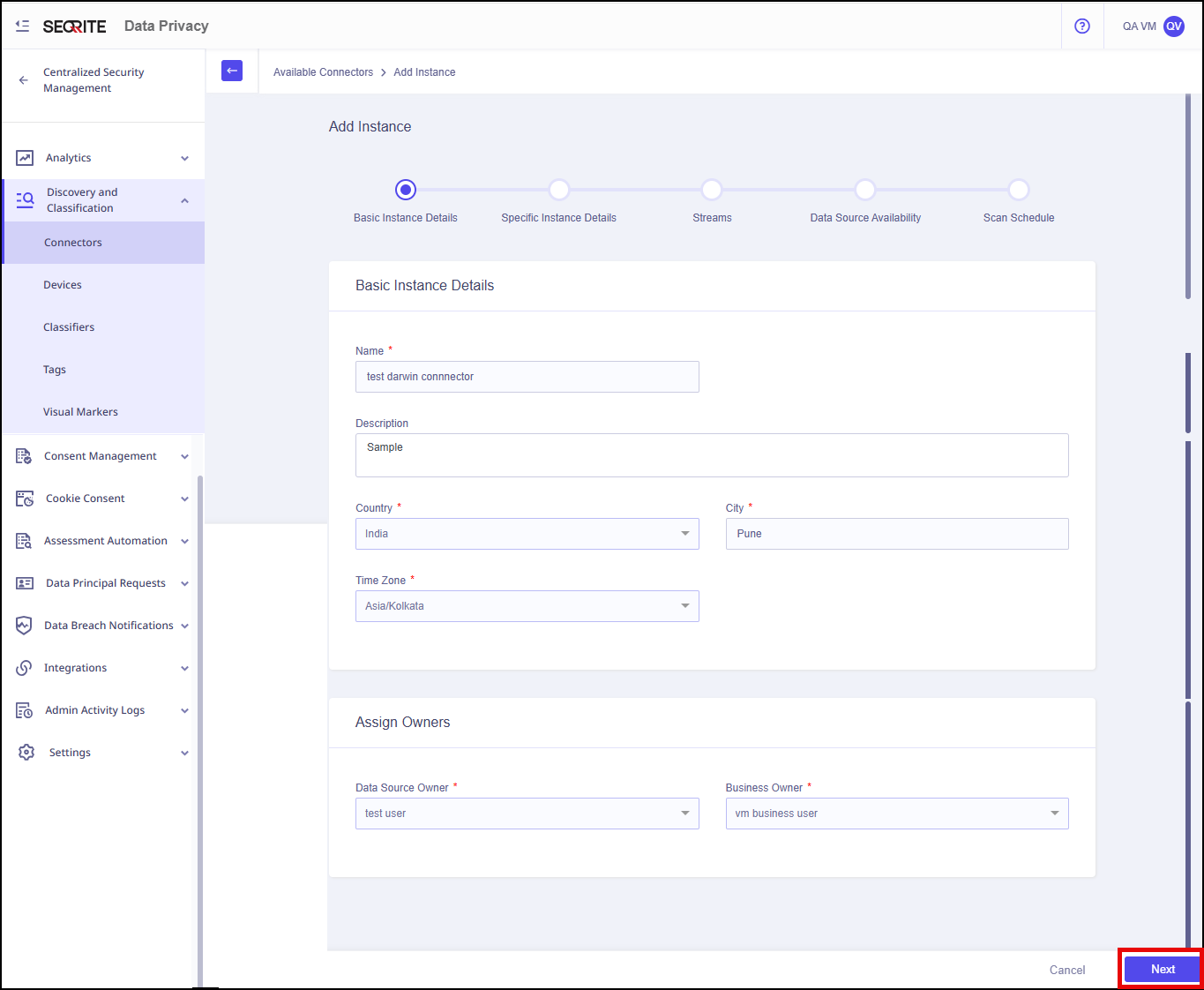
- Enter Basic Instance Details and Owner details:
- Name
- Description
- Country
- City
- Time Zone
- Data Source Owner: The person who owns the data source and makes technical decisions about it.
- Business Owner: The person who is responsible for the business decisions about the data source.
- Click Next.
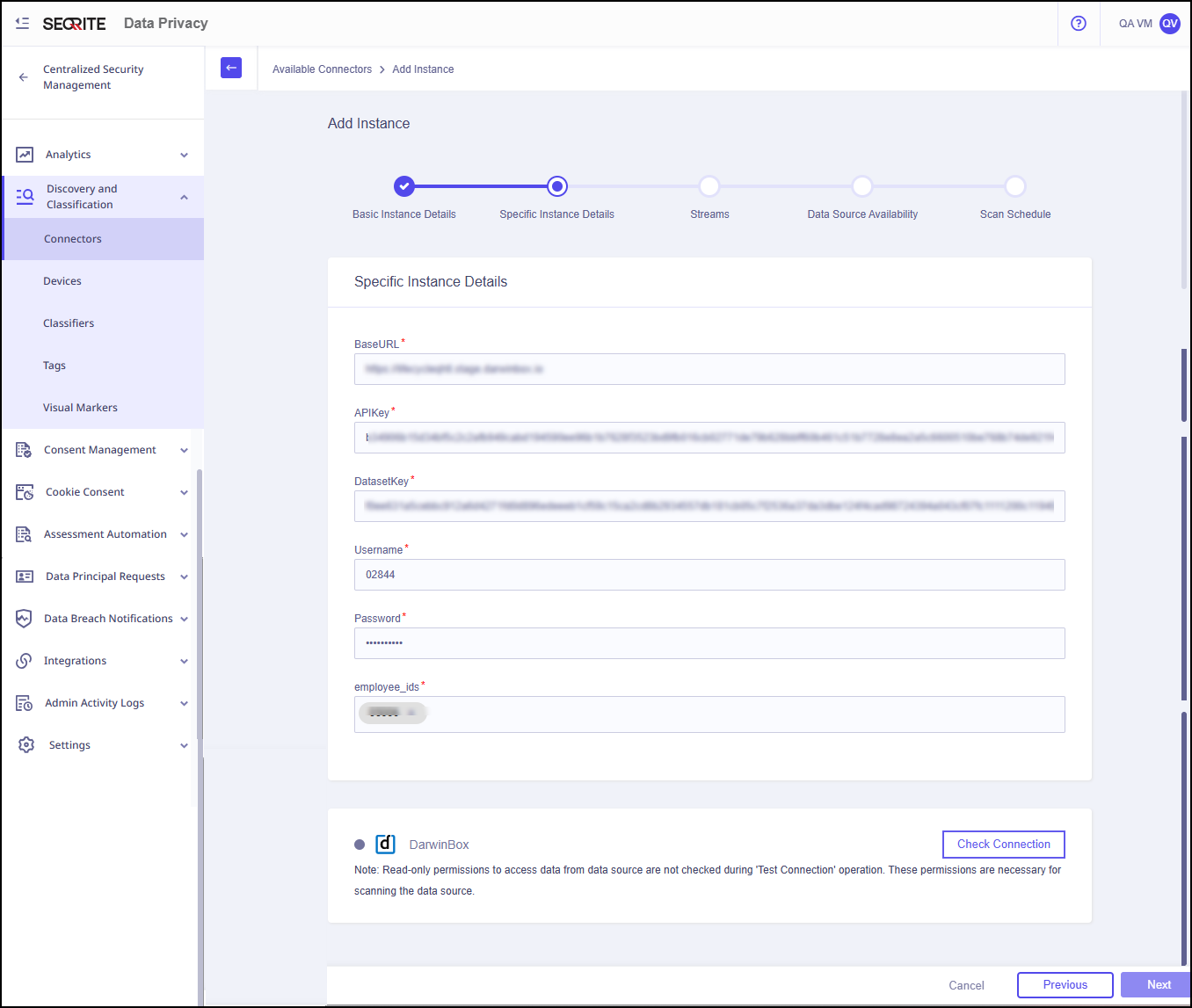
- Enter Specific Instance Details:
- Base URL: Configured base URL of DarwinBox for an enterprise.
- API Key: A unique identifier provided by the service provider to allow third-party applications to access the service securely.
- DataSetkey: A specific identifier within the service that is used to access a particular dataset or set of data within the service
- User Name
- Password
- employee-ids
- Click Check Connection.
- Click Next.
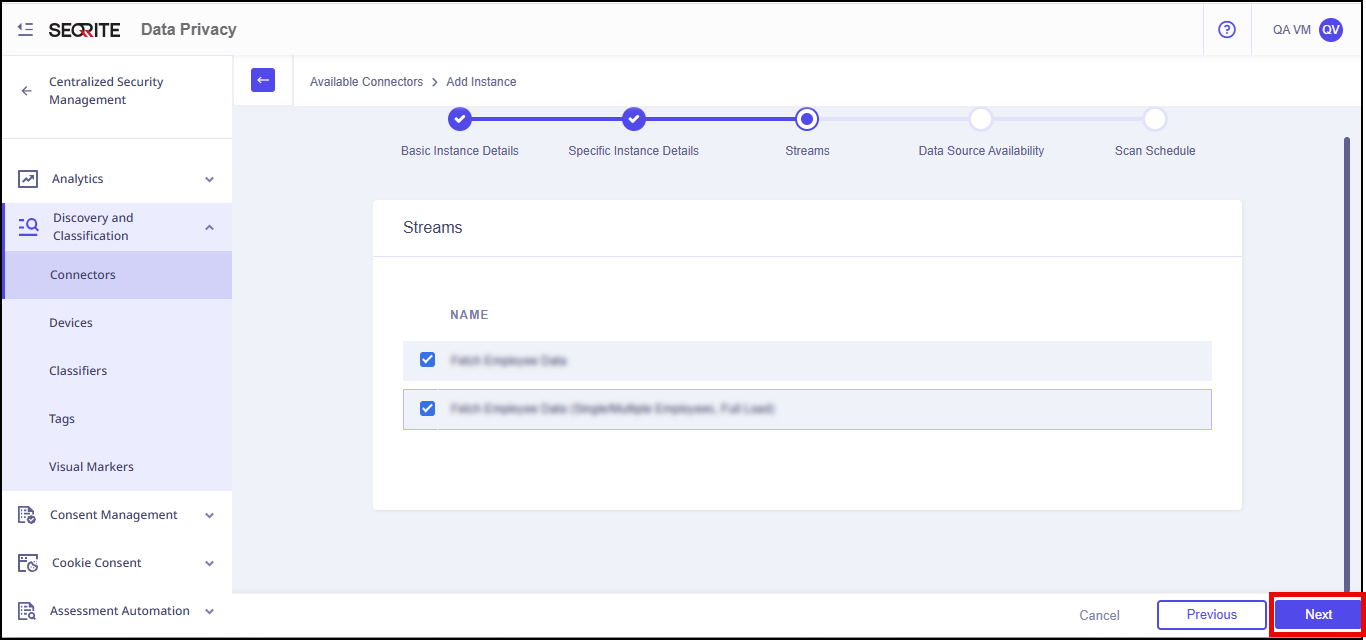
- Select the stream and click Next.
The Stream page displays all streams configured in the DarwinBox that require scanning. You can review the list and select the streams you need.
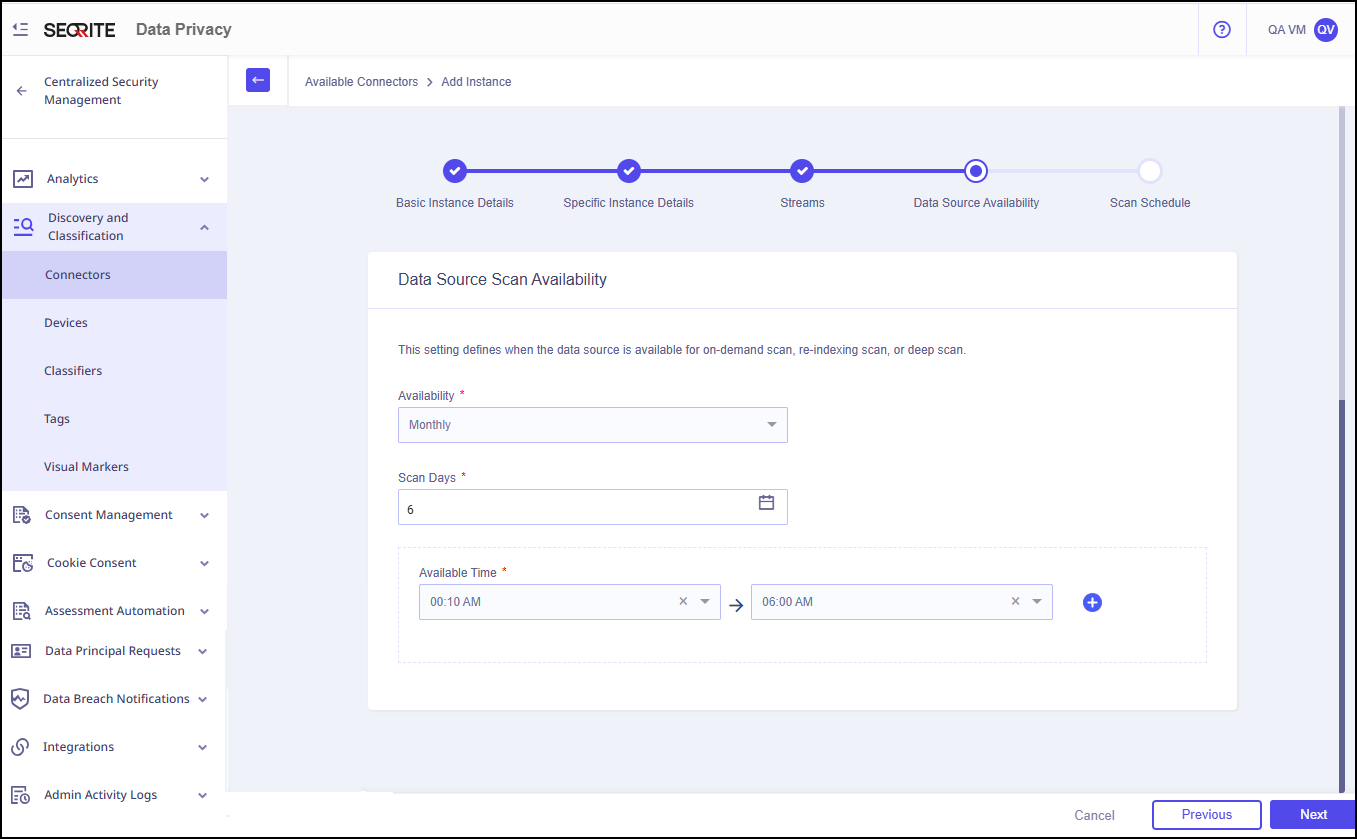
- Enter the Data Source Scan Availability details.
This setting defines when the data source is available for on-demand scan, re-indexing scan, or deep scan.- Availability: Monthly, weekly or daily
- Scan Days
- Available Time
- Click Next.
- Enter Scan Schedule/Scan Frequency details:
- Scan Frequency
- Deep Scan Frequency
Note:
- The data source will be available for scanning monthly on selected date.
- The data source will be scanned based on the user‑defined interval. A deep scan will be performed after the number of scan cycles specified by the user.
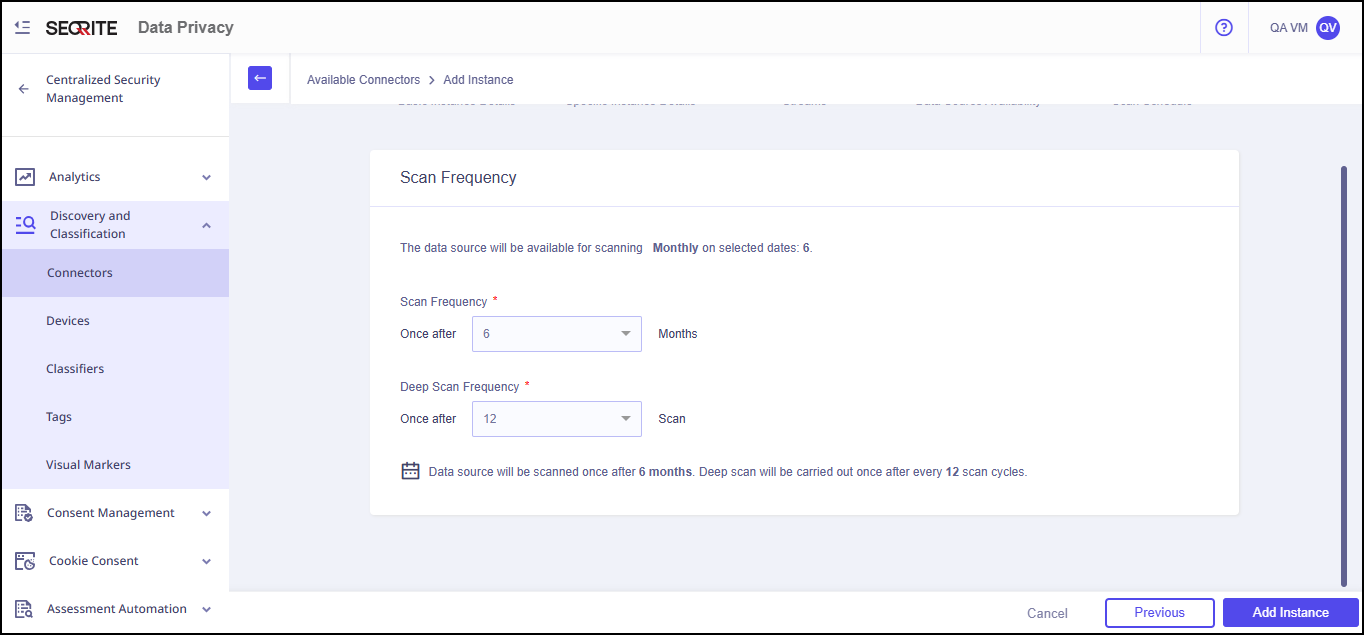
- Click Add Instance.
Instance of the data source is added successfully.
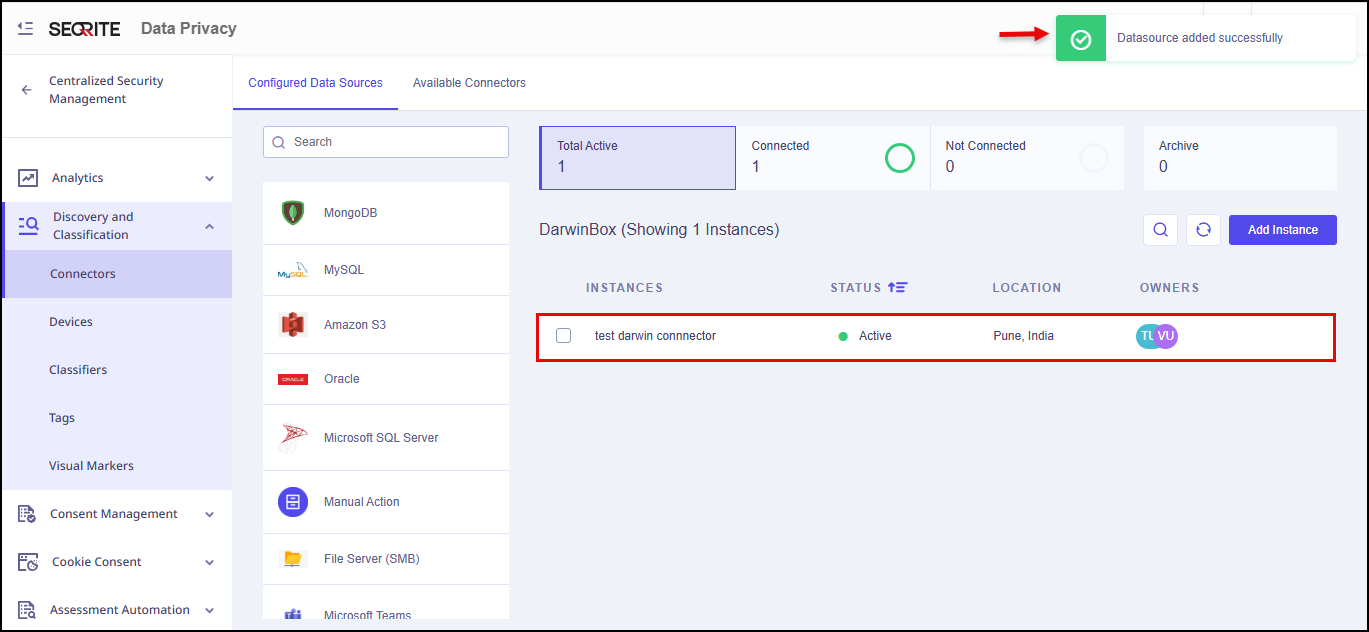
Configured Data Sources page is displayed.
If the provided details are accurate, the connection with DarwinBox will be established successfully.
