

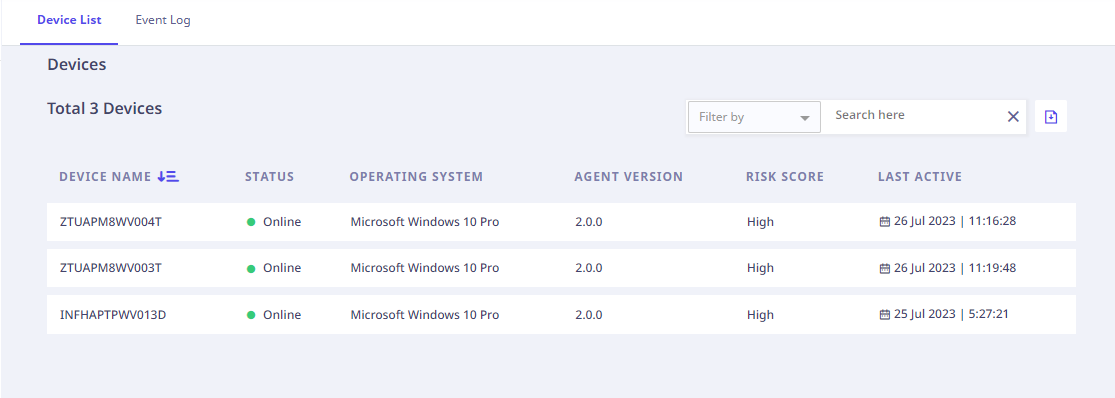
The Devices Page displays the list of Devices on which the Seqrite Data Privacy Agent is installed, in a tabular format as follows,
| Column Name | Description |
|---|---|
| Device Name | Device name on which the Seqrite Data Privacy Agent is installed. |
| Status | Device Status – Online/Offline. |
| Agent Status | Seqrite Data Privacy Agent Status – Enabled, Disabled. |
| Operating System | Operating System Edition on the device on which the Agent is installed. |
| Agent Version | Seqrite Data Privacy Agent Version. |
| Risk Score | Privacy Risk Score of an endpoint. (Please refer the Risk Score Section for more details.) |
| Last Active | Seqrite Data Privacy Agent Last Active Timestamp. |
You can search the devices based on following criteria,
- Device Name
- Operating System
- Agent Version
Select the appropriate criteria from the dropdown, the adjacent dropdown gets populated with the corresponding values for the selected criteria.
Select the value from the dropdown, then the matching devices list appears.
To export the device list to an excel file, click Export.
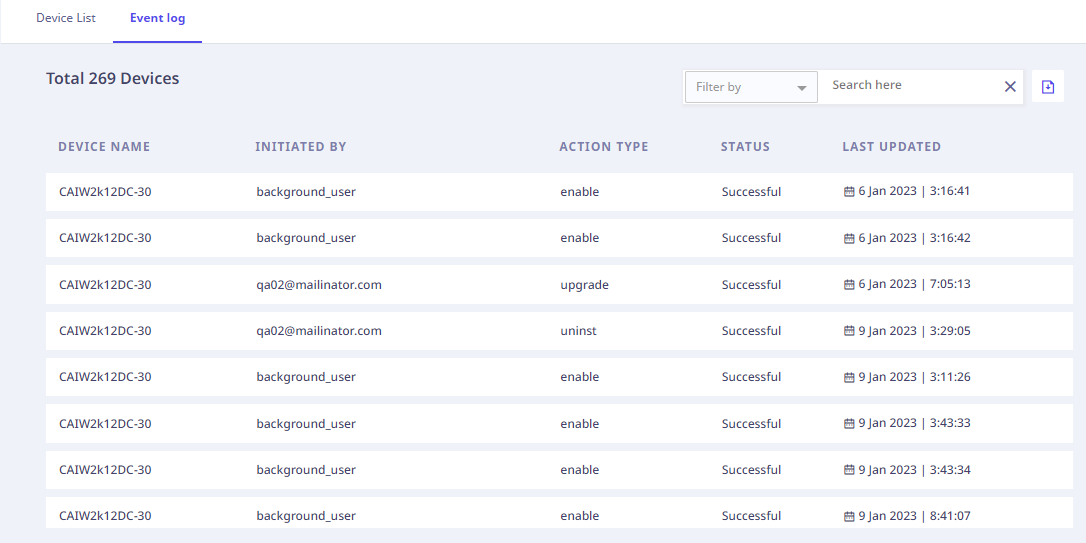
The Event Log Tab displays the list of actions performed on the Seqrite Data Privacy Agent, in a tabular format as follows,
| Column Name | Description |
|---|---|
| Device Name | Device name on which the Seqrite Data Privacy Agent action is performed. |
| Initiated By | Who initiated the Agent action – System/User Name. |
| Action Type | An action performed on the Agent – Uninstall/Upgrade/Enable/Disable. |
| Status | The status of the action taken against the Agent Pending/Successful/Cancelled/Fail/Expired. |
| Last Updated | Action and Status change Timestamp. |
You can search the devices based on following criteria,
- Device Name
- Initiated By
- Action Type
- Status
Select the appropriate criteria from the dropdown, the adjacent dropdown gets populated with the corresponding values for the selected criteria.
Select the value from the dropdown, then the matching devices list appears.
To export the action logs to an excel file, click Export.
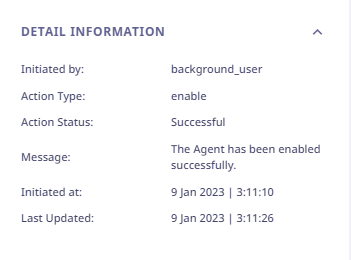
In the action logs list, each action log record is clickable. On clicking, the right panel appears and shows the following details,
Risk Score
The Risk Score indicates criticality of a device based on the number of classified data records found on the device.
The default privacy Risk Score model for a device or endpoint is as follows.
| Endpoint Privacy Risk Score | No. of Classified Data Records | No. of Classified Data Records |
|---|---|---|
| Lower Limit | Upper Limit | |
| Very Low | – | 100 |
| Low | 101 | 500 |
| Medium | 501 | 1000 |
| High | 1001 | 5000 |
| Critical | 5001 | – |
A Risk Score is of Very Low indicates an endpoint with a lower number of classified data records, ranging from 0 to 100.
A Risk Score is of Critical indicates an endpoint with a larger number of classified data records, exceeding 5001.
Proxy Support for Full On-Premises Instance : In a full on-prem setup, users can configure a proxy to manage agent communication securely. Once the proxy is set, agent installation and classification are routed through it, ensuring centralized control and seamless integration. Simply define the proxy settings, assign them to agent groups, and proceed with agent deployment—classification will occur automatically via the configured proxy.
Seqrite Data Privacy also supports both Manual and PAC file–based proxy settings, along with centralized proxy configuration for on‑prem deployments.
This ensure Traffic routing through specified proxy rules, streamlined deployment setup and integrated configuration within the Deployment section (no separate module needed).
What is PAC file?
A PAC file is a Proxy Auto-Configuration file. It tells browsers and other apps which proxy to use (or not use) for a given URL — automatically, per request.
Supporting PAC Helper Functions (dnsDomainIs())
What is dnsDomainIs()?
It is a built-in helper function provided by PAC (Proxy Auto-Configuration) environments.
It is commonly used to check whether a hostname belongs to a specific domain or subdomain.
Example use case:
- Matching www.example.com with
.example.com - Applying proxy rules to all subdomains of a domain
When does an issue occur?
In standard browsers (Chrome, Firefox, Edge), dnsDomainIs() is available by default.However, if you encounter an error such as:
dnsDomainIs is not defined.
This indicates that:
- The PAC file is being executed in an unsupported or non-standard environment, or
- The tool or service executing the PAC file does not support PAC helper APIs.
Recommended Solution (Fallback Definition)
To ensure compatibility across all environments, it is recommended to define a fallback implementation of dnsDomainIs() at the top of the PAC file.
Add the following function before FindProxyForURL
function dnsDomainIs(host, domain) {
return host.length >= domain.length &&
host.substring(host.length – domain.length) === domain;
}
Required function
function FindProxyForURL(url, host) {
// logic here}
Final Corrected PAC File (Recommended)
/* ————————————————-
Fallback PAC Helper Function
————————————————- */
/*
Some environments do not provide built-in PAC helpers.
This fallback ensures dnsDomainIs() always works.
*/
function dnsDomainIs(host, domain) {
return host.length >= domain.length &&
host.substring(host.length – domain.length) === domain;
}/* ————————————————-
Main PAC Function
————————————————- */
function FindProxyForURL(url, host) {
host = host.toLowerCase();/* Route specific domains via proxy */
if (host === “app.example.com” || dnsDomainIs(host, “.linkedin.example”)) {
return “PROXY proxy.example.com:8080”;
}if (host === “service.example.com”) {
return “PROXY proxy.example.com:8080”;
}/* Blocking rule example */
if (host === “blocked.example.com” || dnsDomainIs(host, “.blocked.example”)) {
return “PROXY 127.0.0.1:9”; // intentionally invalid proxy to block
}/* Allow direct access for specific domain */
if (host === “dev.example.com” || dnsDomainIs(host, “.dev.example.com”)) {
return “DIRECT”;
// To block instead, use:
// return “PROXY 127.0.0.1:9”;
}/* Default rule */
return “DIRECT”;
}
Edit Proxy Setting
To edit the proxy setting, follow these steps:
1. Proxy Settings
- Go to Device and click Deployment.
- Click Edit in Proxy Settings tab.
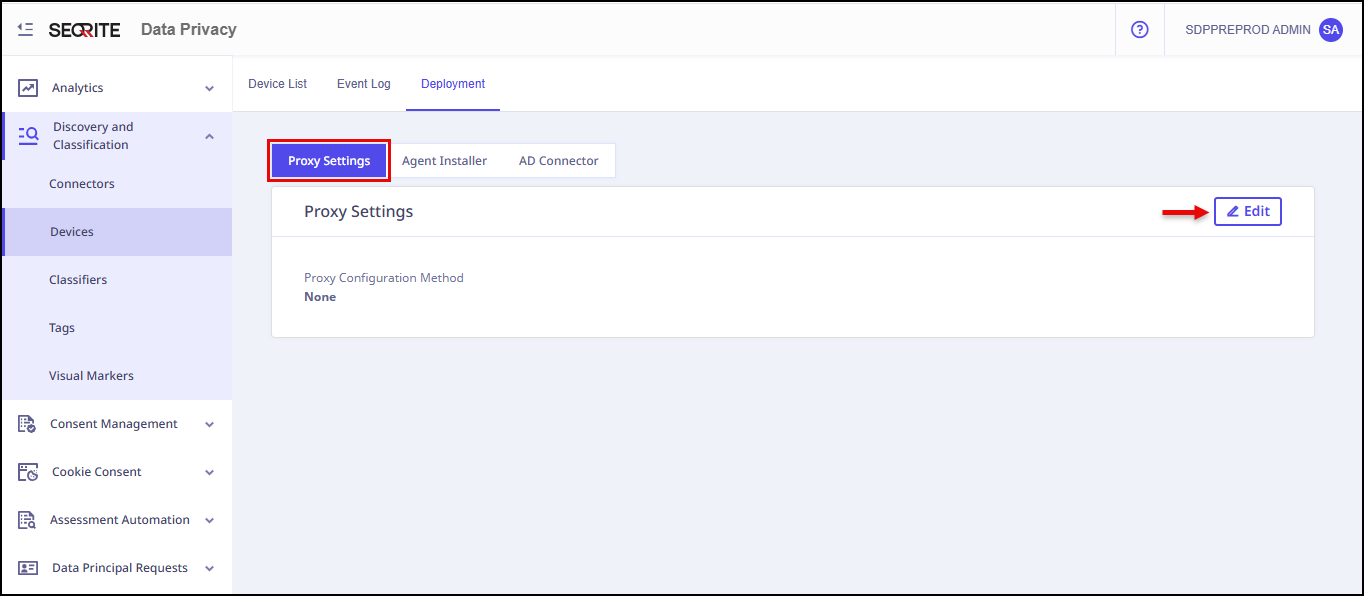
Edit Proxy Settings screen displays.
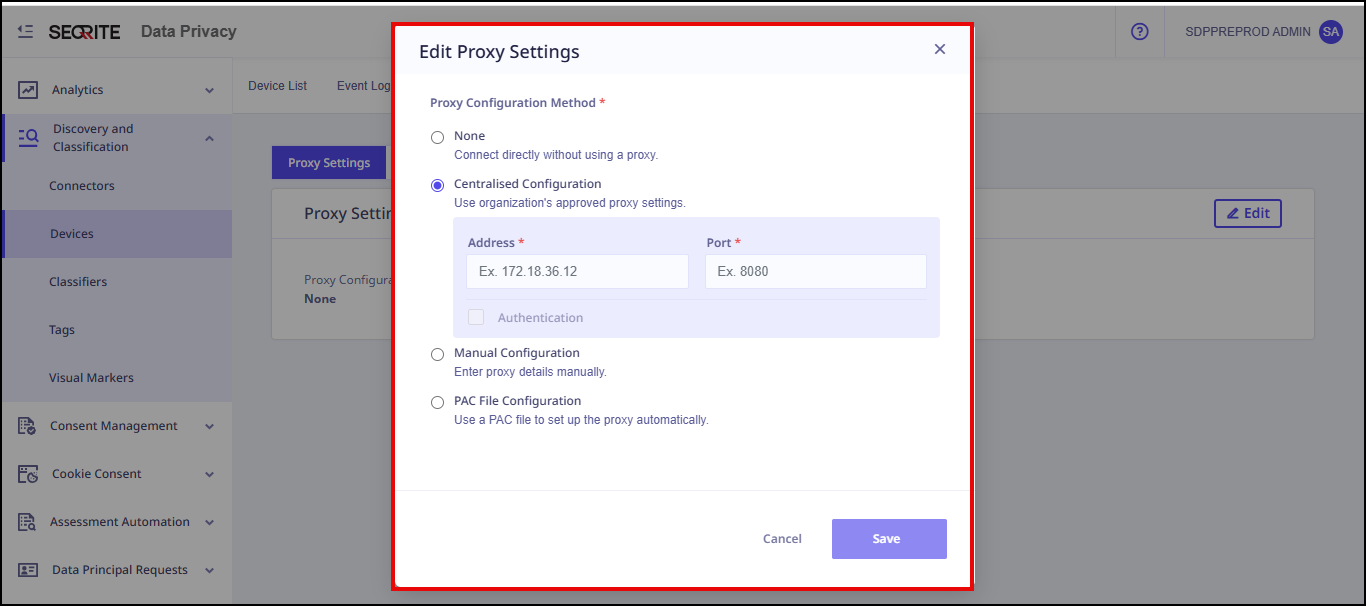
- Select the Proxy Configuration Method from:
- None
- Centralised Configuration
Enter Address and Port.
Note: If the user has enabled the Authentication option, the Username and Password fields appears. - Manual Configuration
- PAC File Configuration
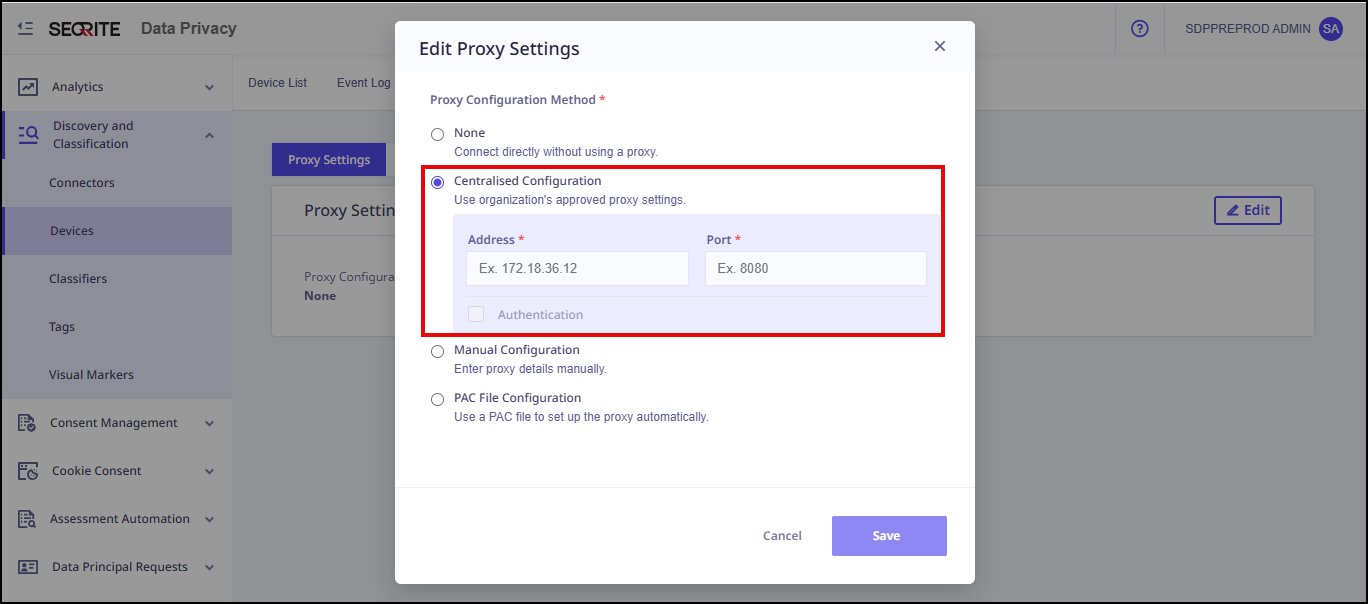
- Click Save.
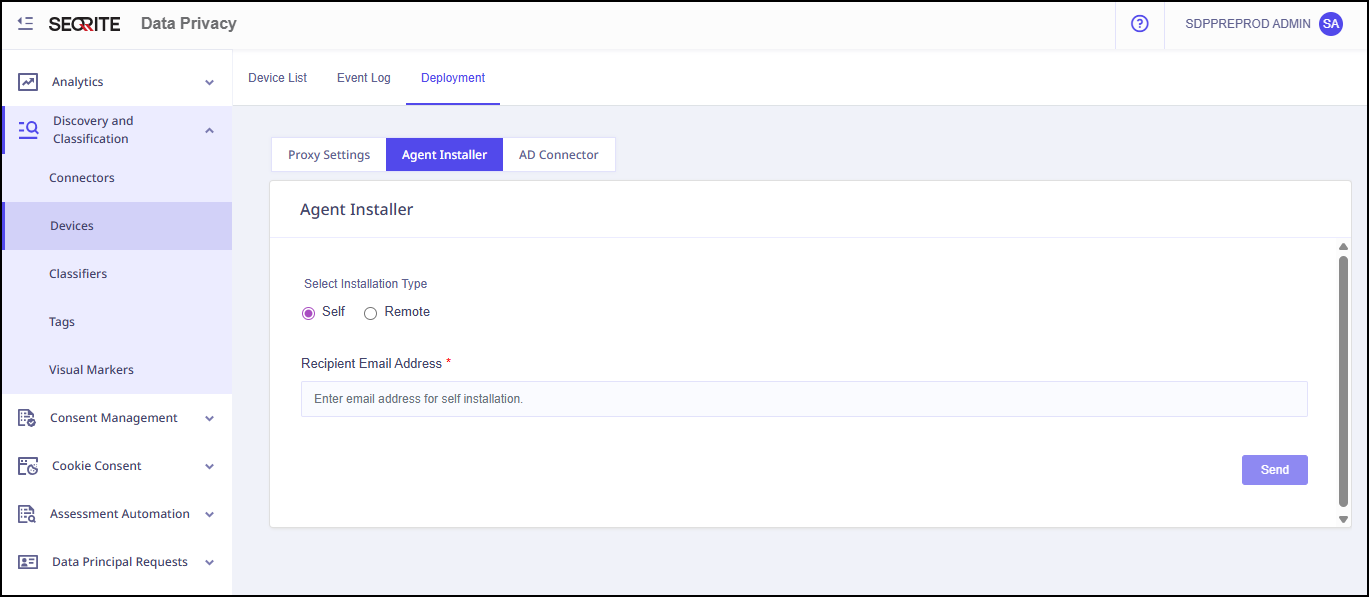
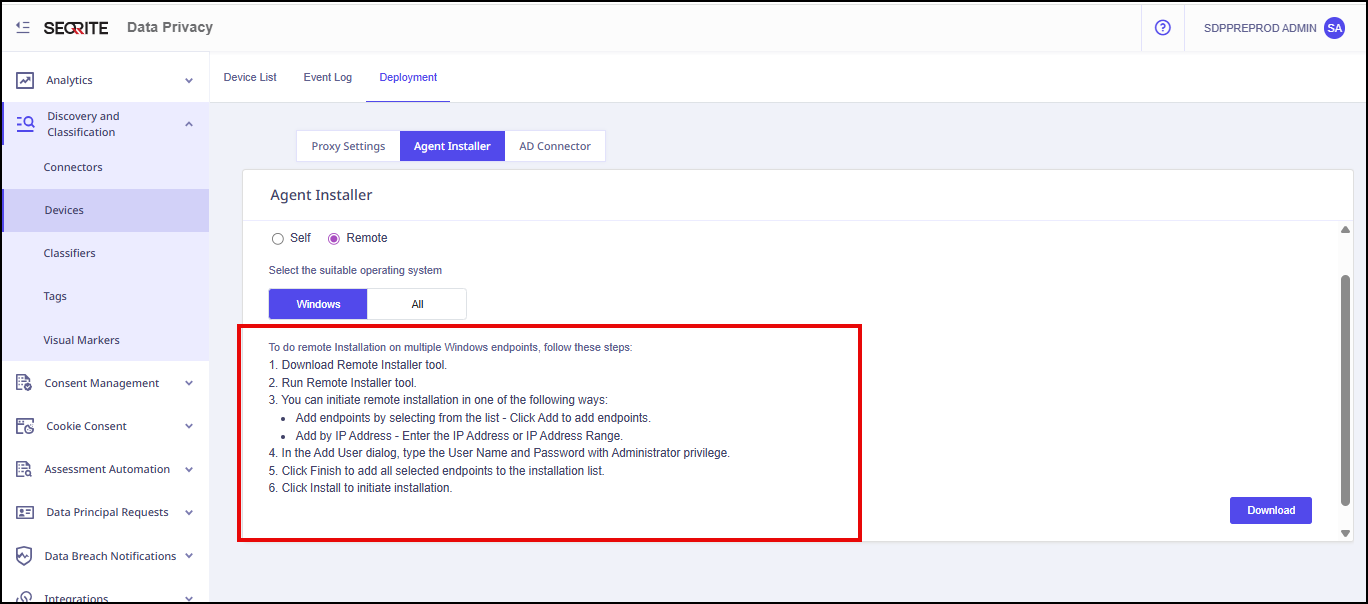
2. Agent Installer
To install an agent on device:
- Click Agent Installer tab.
- Select the installation type that is either Self or Remote.
- For Remote installation, follow the steps given on the screen to install the agent.
- Enter Receipient Email Address and click Send.
3. AD Connector
- Download AD Connector.
Support for HA Version 1.4.0: Version 1.4.0 introduces enhanced High Availability (HA) support, enabling seamless failover and improved resilience. Users can configure active-passive or active-active HA setups, ensuring continuous availability of services. Proxy configurations, agent installations, and classifications are fully compatible with HA, maintaining consistent behavior across nodes.