
The Seqrite DRPS dashboard provides a unified overview of all monitored asset categories, displays real-time alert statistics and trends via interactive cards and graphs, and summarizes incident responses and alert sources for quick assessment of your organization’s security posture.
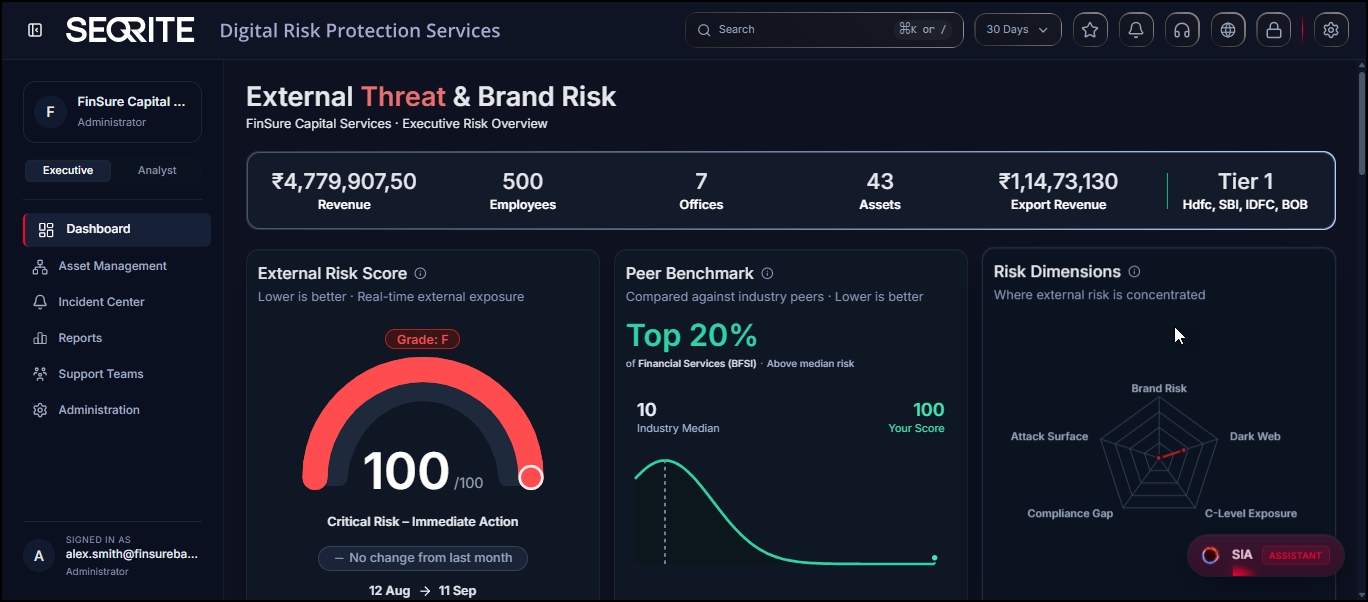
The dashboard provides two views:
- Executive View: Offers a high-level summary of key metrics and performance indicators.
- Analyst View : Provides detailed insights, including metric counts, breakdowns, and additional analysis to support deeper investigation.
Note: The detailed data displayed in the sample screenshots is for demonstration purposes only. These details are dummy/sample data and do not represent actual data from any environment.
Dashboard Metrics
The available metrics vary based on the selected dashboard view.
Executive View Metrics
The Executive View provides a quick overview of your organization’s exposure and highlights the actions that leaders should focus on.
| Metric Name | Description |
| External Risk Score | Shows your organization’s risk score (0 to 100), risk grade, and the change compared to the previous month. Lower scores indicate lower risk. |
| Peer Benchmark | Shows how your organization’s risk score compares with other BFSI organizations and the industry average. |
| Risk Dimension | Shows risk levels across key areas such as Brand Risk, Dark Web Exposure, C-Level Exposure, Compliance Gaps, and Attack Surface. |
| Risk Trend & Journey | Shows external risk scores over time at the selected granularity. |
| Board Decisions Required | Shows the items that need board attention, including their priority, recommendation, and status. |
| Brand Sentiment | Shows detected and neutralized threats, the severity of incidents, and the exposure of organizational credentials on the dark web. |
| Monthly Investment vs Risk Avoided | Shows comparison between monthly platform investment against estimated risk avoided. |
| Threats: Detected vs Neutralized | Shows how many threats were detected versus neutralized in each category. |
| Threat Neutralization Rate | Shows share of identified threats have already been neutralized. |
| Incident Categories | Shows incident by severity. |
| Dark Web Credential Exposure | Shows tracked credentials exposed on dark web or breach monitoring sources. |
Analyst View Metrics
The Analyst View helps analysts track metrics, investigate issues, and monitor activities daily.
| Metric Name | Description |
| Credit & status tiles | Displays SOS credit usage, takedown credits, support ticket counts, and monitoring status. |
| Incidents Summary | Shows the total, active, and resolved incidents, resolution rate, and discovered versus total assets. |
| Deep, Dark & Surface Web | Shows the number of brand-related threats and exposures found on the surface web and the deep/dark web. |
| Critical Incidents Trend | Shows recent incidents (live feed), top vulnerable categories and top 5 vulnerable assets. |
| Incident Categories | Displays incidents by risk category, along with the related asset count, incident count, and severity levels. |
Global Search Bar
You can search the alert by status, alert name, alert name, alert name, alert name, alert ID, severity level, asset name, Email address, domain name, IP address, assignee name, and category along with the specified number of days.
Notifications
The upper-right section of the Seqrite DRPS console shows various types of notifications along with the following details:
- Description
- Incident Id
- Severity (Low, Medium, High, Critical)
- Incident details
- Source of alert
- Assigned to
- Alert status
- Evidence snapshot
- Affected assets
User Actions on Notifications
You can take required actions on notifications such as:
- SOS (Send urgent alerts for immediate assistance)
- Take Down (Request legal action to remove the threat)
- Assign (Assign alert to your team member)
- General Support (Ask Seqrite team for more details about this alert)
Change Notification/Alert Status
You can change the notification status to Open or Report as false .
Help and Support
Redirects you to Seqrite Technical Support for any assistance.
Set up Screen Lock
Set a 6-digit MPIN to secure your session. When the session is locked, you must enter the configured 6-digit MPIN to unlock it and continue using the application.
User Profile
The User Profile section on the upper-right corner of the dashboard shows following options:
- Change Password: Update your account password.
- Setup 2FA: Enable two-factor authentication for enhanced account security.
- Screen Lock: Lock your session with a 6-digit MPIN for added protection.
- Active Session: View and manage your currently active login sessions.
- SSO Configuration: Configure Single Sign-On settings for your organization.
- Take a Tour: Explore the application’s key features through a guided walkthrough.
- Logout: Sign out securely from the application.
SIA ASSISTANT
SIA Assistant is built-in AI analyst, available throughout the application to help you understand risks, incidents, and security scores.
Key Features
- Available Everywhere: Access SIA Assistant from the bottom-right corner of any screen.
- Ask in Plain Language: Ask questions about risk scores, incidents, exposures, or recommended actions using natural language.
- Data-Driven Responses: Receive instant answers based on your organization’s live monitoring data and incident context.
- Monthly Credits: Your subscription includes 100 prompts per month, which are automatically refreshed at the beginning of each month.