

The Incident Center is the central dashboard where detected digital threats are collected, organized, and managed.
Incident Center gives a clear overview of all alerts in one place. It also includes an incident the Incident Response chart shows the number and severity of alerts assigned to each team member for efficient tracking and resolution.
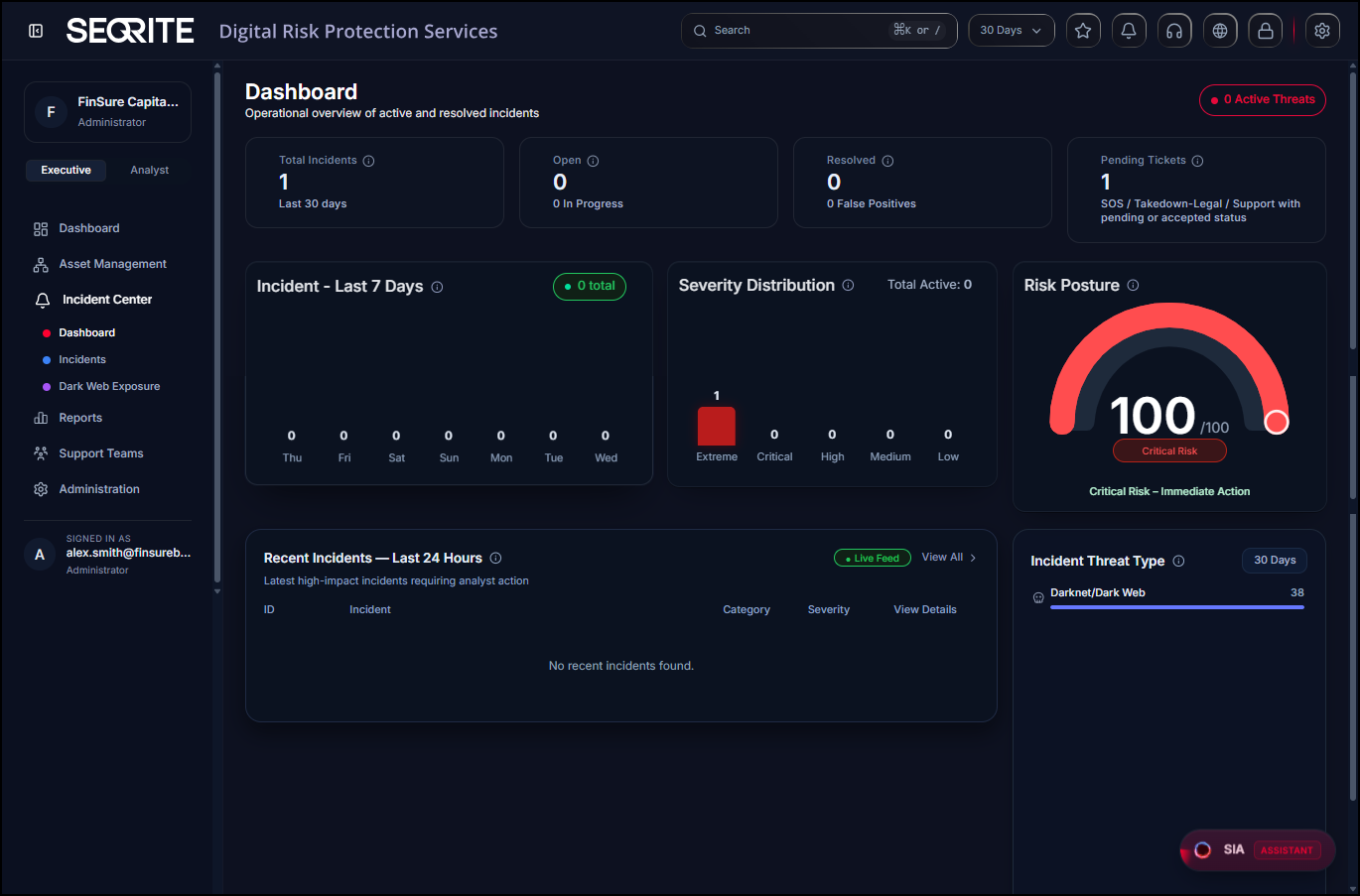
It also gives a list of incidents along with details such as, incident ID, Title, Severity, Affected Asset, Assigned to, Status, and Date and Time.
Filtering Incident List
You can filter the incident list by category, subcategory such as Company, Address, Brand Details, Card Information, Incident Status (All, Open or Resolved), and by Date.
Viewing Incident Details
To view details of an incident, follow these steps:
- After logging in to Seqrite DRPS, go to Incident Center.
- Click the incident whose details you want to view.
Incident detail page appears with following details:
- Response Actions
- SOS: For Immediate assistance and any kind of support required.
- Takedown: To take down harmful and fraudulent content.
- General Support: To ask more details about the incident to Seqrite team.
- History and Sharing
- Show timeline: View the complete activity history for the incident, including status changes, actions taken, and comments.
- PIN: Pin the incident for quick access.
- Mail: Send the incident summary to stakeholders by email.
- Export: Download the incident report for record-keeping, auditing, or further review.
- Incident Management
- Assign: To assign alert to appropriate team members within the group to ensure prompt and efficient handling and resolution of incidents.
- Progress: Mark that the incident is actively being worked on.
- Re-open: Reopen a closed incident if the threat reoccurs or requires further investigation.
- False Positive: Mark an incident as a false positive to remove it from the active incident queue.
- Marked as Resolved: Mark the incident as resolved when the threat is no longer active.
- Overview tab
- Incident Description: You can view full incident summary, impacted assets, and recommended actions.
- Evidence tab: Displays all the supporting images or documents collected for the incident.
- Incident Risk Profile: Displays the incident’s risk score, financial impact, SLA status, and credit information.
- Confidence Score: Displays how likely the threat is to be real. A higher score indicates a higher level of confidence and priority.
- Total Risk: Displays the overall incident severity (0-100) based on impact, likelihood, and velocity.
- Incident Timeline: Displays the complete history of the incident, including status changes, actions taken, and updates from detection through resolution.
- Incident Metadata: Displays key incident details, such as the source, category, detection date, last updated date, and affected asset.
- Support Conversation: Chat with the support team about the incident. Comments posted here automatically create a linked General Support Request.
Alert Types Generated
Following DRPS alert types will be generated and shown on the portal.
| Category | Use Case Description |
| Brand Identity |
|
| Digital Assets (Domains, Web Presence) |
|
| Communication Channels |
|
| Intellectual Property (IP Assets) |
|
| IT Infrastructure |
|
| C-Level Employee (VIP Monitoring) |
|
| Third-Party Risk Management |
|
Dark Web Exposure
The Dark Web Exposure displays sensitive organizational information and credential leaks identified on dark web sources, helping organizations detect potential data breaches and mitigate associated risks.
The page contains following two tabs:
Credential Leaks
The Credential Leaks tab displays exposed credentials detected from leaked or compromised sources. Users can review details such as source URL, Type, Email Address, Password, and Indexed At date. This information helps identify potentially compromised accounts and supports remediation activities.
Filtering Credential Leaks List
You can filter the list by Category (Digital Asset, Communication, IT Infrastructure, C-level Employee/VIP Executive, Supply Chain/TPRM), Type (Email, Domian, Phone, IP Address), and by Status (Outstanding, Rotated, Not ours, In review).
Stealer Logs
The Stealer Logs tab displays details about the IP address associated with exposure and identifies exposed information, such as passwords, cookies, and autofill data. Cookies may represent active sessions that could pose a risk of unauthorized access if exploited. This information helps users investigate affected assets and assess potential security risks.
The page also includes a severity breakdown of exposures categorized as Critical, High, Medium, and Low, enabling users to prioritize investigation and remediation efforts.
Additionally, the page provides the following summary metrics:
- Infected Devices: Total number of assets identified in stealer logs.
- Live Sessions: Number of active cookie-based sessions that may pose a risk of unauthorized access.
- Corporate Passwords: Number of exposed corporate credentials identified.
- Total Artifacts: Total number of collected exposure artifacts, such as passwords, cookies, and autofill data.
These metrics help users assess the scope and potential impact of credential and data exposure.
Exporting Dark Web Exposure List
You can export the Dark Web Exposure data in CSV format. The export feature is available for both the Credential Leaks and Stealer Logs tabs.
To export the Dark Web Exposure list:
- Navigate to the Incident Center >> Dark Web Exposure.
- Select either the Credential Leaks or Stealer Logs tab.
- Click Export .
The selected list is downloaded in CSV format.
Note: The exported file contains the records currently displayed in the selected tab.