

The Administration section displays a list of all sub-admins added to the system and allows you to manage them efficiently. Within this section, admin can add new sub-admins, edit their details, and control their status by activating or deactivating accounts.
Users
In the Users section admin can manage user access, roles, and category permissions.
Grant Access/Add User
Admin can add new users and assign category-based monitoring scopes to control which categories the users can access and monitor.
To add user, follow these steps:
- After logging in to Seqrite DRPS, go to Administrator.
- Click Users.
- Click Grant Access.
- Enter first name, last name, and email address.
- Select one or more roles from Sub admin (Manage users and account), Executive (executive dashboards and reports), or Analyst (Analyst dashboard and incident).
- Select the categories for which you want to grant monitoring access to the user.
- Select Allow Re-opening Incidents checkbox to allow users to reopen a resolved incident.
- Click Grant Access.
The system sends an invitation email to the user.
Note: Users that you add become Sub-Admins with the assigned role. Users with the Executive role can access only the Executive Dashboard , while users with the Analyst role can access only the Analyst Dashboard. To grant access to both dashboards, assign both roles. The user can then switch between the Executive and Analyst dashboards using the Executive/Analyst toggle.
Activate/Deactivate the User
To activate or deactivate the Sub-Admin, follow these steps:
- After logging in to Seqrite DRPS, go to Administrator.
- Select the user you want to activate/deactivate and switch the Activate or Deactivate toggle.
Delete Users
To delete the user, follow these steps:
- After logging in to Seqrite DRPS, go to Administrator.
- Select the user you want to delete and click
 .
.
Integrations
Seqrite DRPS also supports API integrations with chat applications like Microsoft Teams, Slack, Telegram, Google Chat, and Discord. You can set up custom notifications within these apps, allowing your teams to receive and respond to alerts directly in their preferred communication platform.
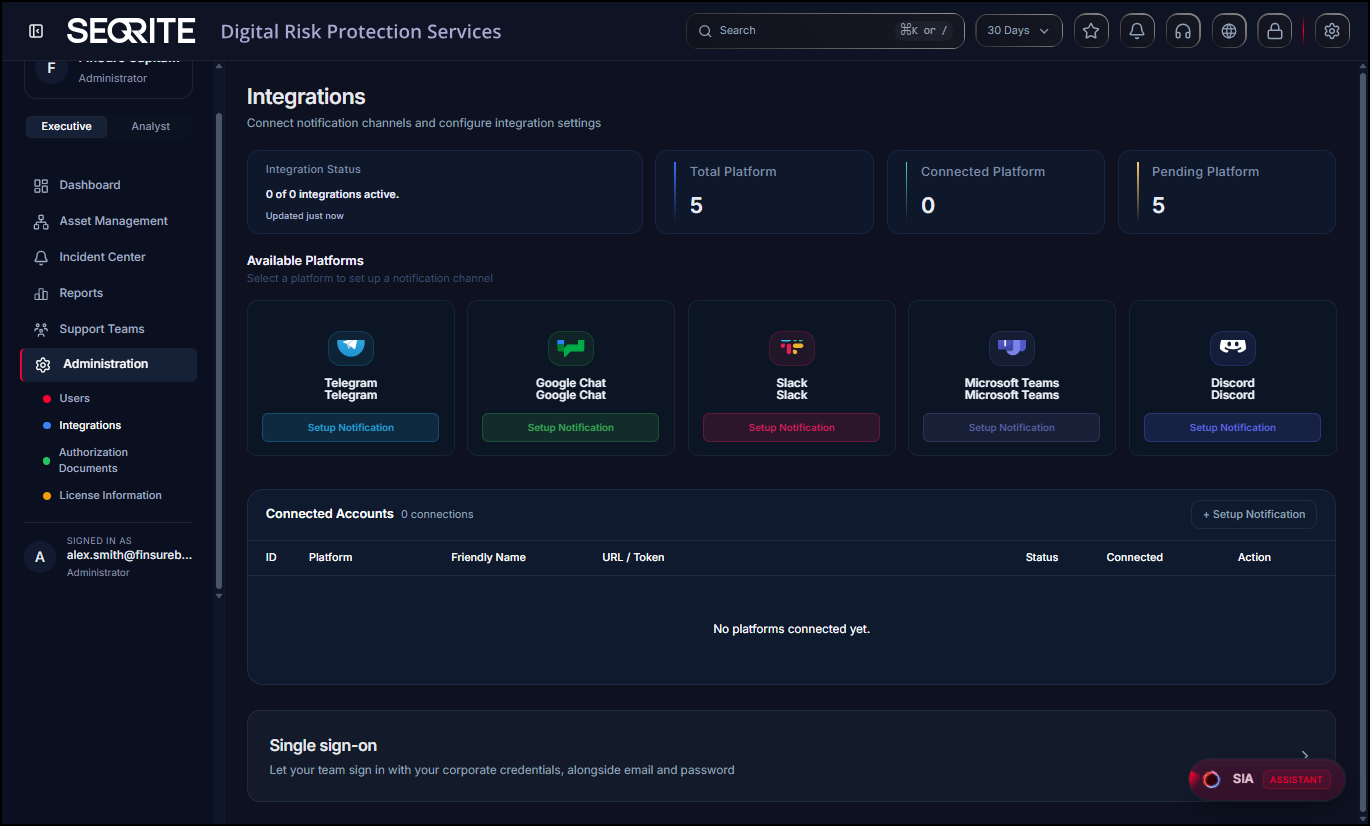
Setup Notification
To set up custom notifications with chat applications, follow these steps:
- After logging in to Seqrite DRPS, go to Administration >>Integrations .
- Choose the platform for which you want to set up custom notifications and click Setup Notification .
- Select the platform, enter name, your BOT API token, enter name, chat ID.
- Click Test, if successful, click Save.
The Setup Notification screen appears.
Authorization Documents
Authorization Documents is a centralized repository where users can upload and manage multiple documents. These documents are requested by the Legal Team during the review and processing of takedown requests.
Uploading Authorization Document
To upload authorization documents, follow these steps:
- After logging in to Seqrite DRPS, go to Administration >>Authorization Documents.
- Click Upload document.
- Select document type, enter title, valid from, valid until dates, notes, select the document.
- Select the confirmation checkbox and click Save.
Note:
- Supported file formats are PDF, DOC, and DOCX .
- The maximum file size allowed for each document is 10 MB .
License Information
The License Information section provides a detailed record of customer information, licensing details, product and service coverage, available credit balances, and support entitlements. It includes customer and order information, covered services, license details, subscription term, and features such as Deep and Dark Web monitoring, Takedown and SOS services, AI-powered threat intelligence, EASM, and enhanced support options.