

The Incident Center is the central dashboard where detected digital threats are collected, organized, and managed.
Incident Center gives a clear overview of all alerts in one place. It also includes an incident the Incident Response chart shows the number and severity of alerts assigned to each team member for efficient tracking and resolution.
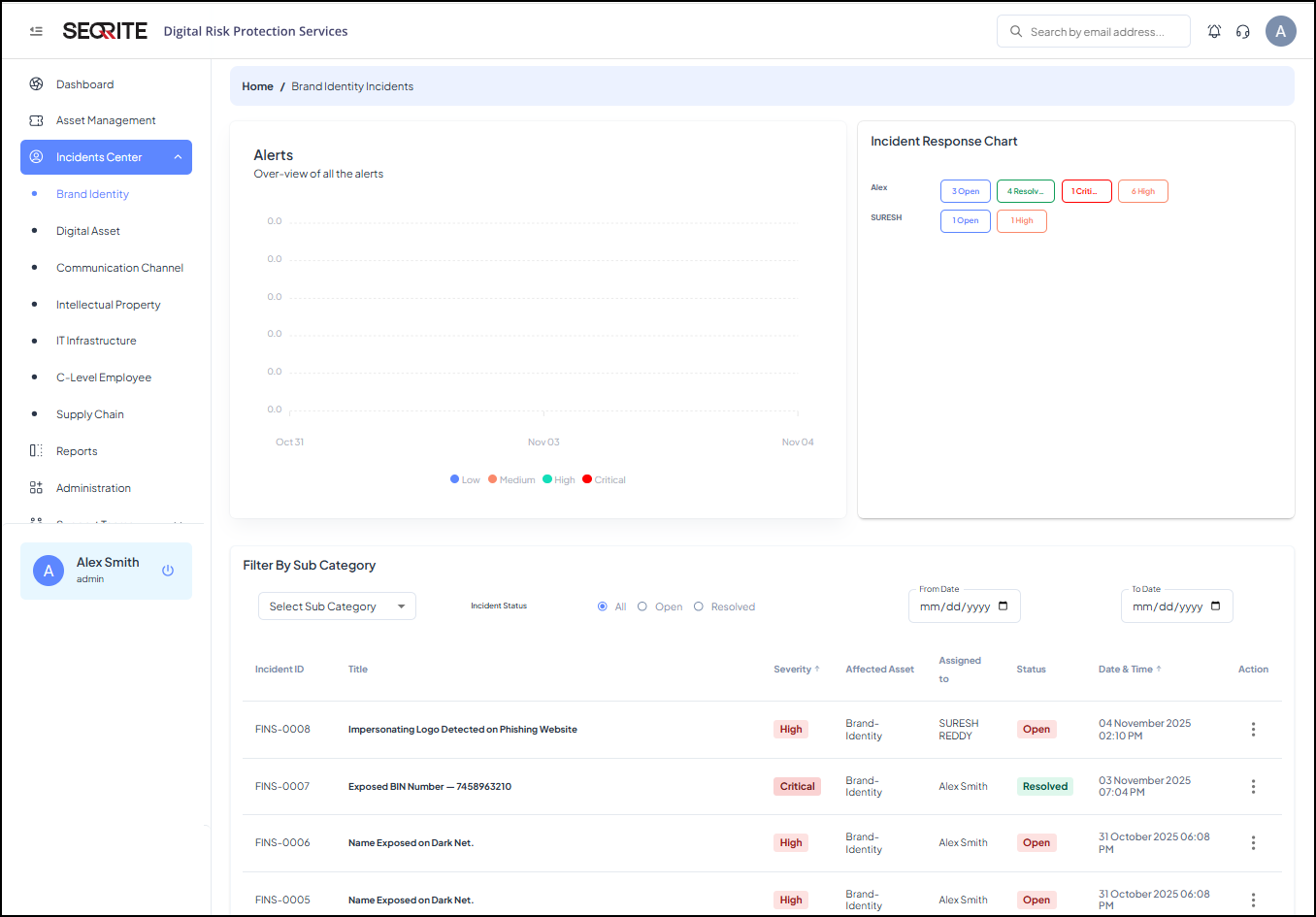
It also gives a list of incidents along with details such as, incident ID, Title, Severity, Affected Asset, Assigned to, Status, and Date and Time.
Filtering Incident List
You can filter the incident list by category, subcategory such as Company, Address, Brand Details, Card Information, Incident Status (All, Open or Resolved), and by Date.
Viewing Incident Details
To view details of an incident, follow these steps:
- After logging in to Seqrite DRPS, go to Incident Center.
-
Select the incident whose details you want to view and click
 in Action column and then click View details.
Incident detail page appears with following details:
- Incident Description: You can view full incident summary, impacted assets, and recommended actions.
- Activity: This section provides log of all incidents related actions including generation, assignments, status changes, team escalations. Gives track of from incident detection to resolution.
- Take Action: You can take actions such as:
- SOS: For Immediate assistance and any kind of support required.
- Take Down: To take down harmful and fraudulent content.
- Assign: To assign alert to appropriate team members within the group to ensure prompt and efficient handling and resolution of incidents.
- General Support: To ask more details about the incident to Seqrite team.
- Credits: SOS and Legal Credit show how many emergencies and legal actions are available.
- Source of Alert/Incident: Shows where the incident originated.
- Assigned To: Shows incident is assigned to whom.
- Alert Status: Shows the status of alert that is, Marked as resolved or Report as false.
- Evidence Snapshot: Displays all the supporting images or documents collected for the incident.
- Affected Assets: Shows which company resource is being monitored or impacted by the incident.
Note: Note: Credit limits are defined based on the license type.
Alert Types Generated
Following DRPS alert types will be generated and shown on the Portal.
| Category | Use Case Description |
| Brand Identity |
|
| Digital Assets (Domains, Web Presence) |
|
| Communication Channels |
|
| Intellectual Property (IP Assets) |
|
| IT Infrastructure |
|
| C-Level Employee (VIP Monitoring) |
|
| Third-Party Risk Management |
|