

You can carry out administrative activities through the settings tab on Seqrite Data Privacy. There are 3 tabs available on the Settings page as follows:
- General Settings
- OCR Configuration
- Language Packs
General Settings
Tenant settings
In this section, all the settings and details related to the tenant are displayed.
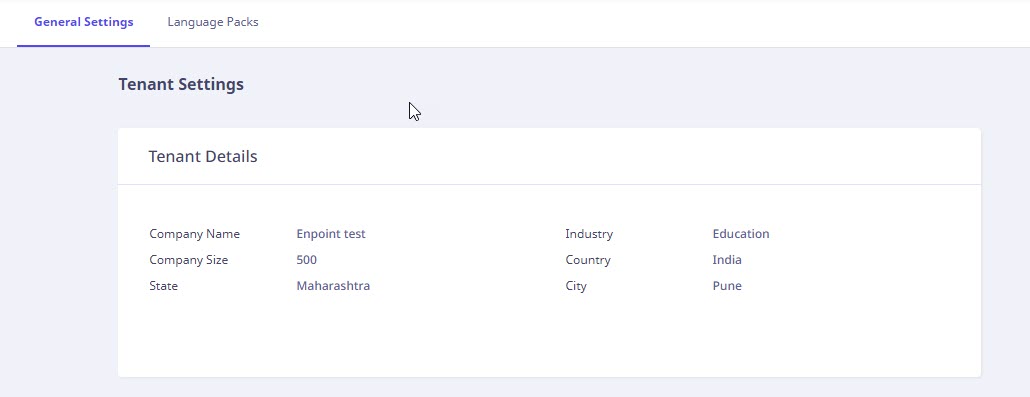
Tenant Details
Tenant details are pre-populated and contain the following information.
| Column name | Description |
|---|---|
| Company Name | Name of the company. |
| Company Size | Number of employees in the company. |
| State | State in which the company is located. |
| Industry | Industry in which the company operates. |
| Country | State in which the company is located. |
| City | City in which the company is located. |
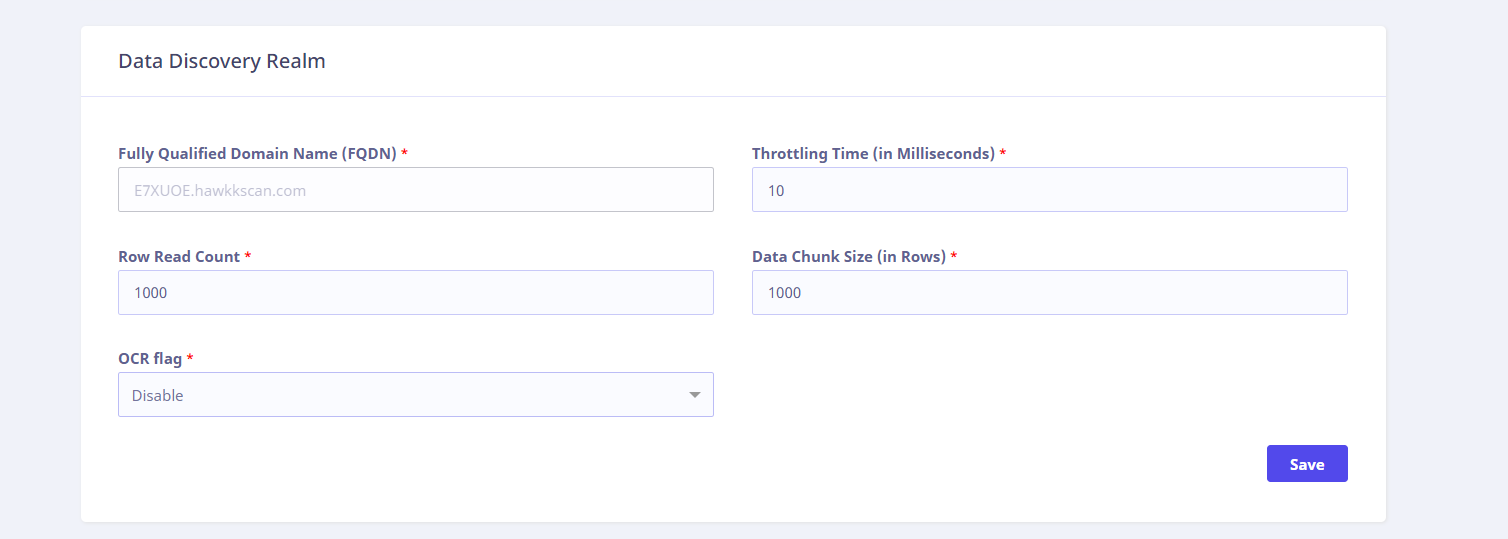
Data Discovery Realm
| Column name | Description |
|---|---|
| Fully Qualified Domain Name(FQDN) | Complete domain name for the database. |
| Throttling Time (In Milliseconds) | The time interval between two successive DDE scan batches. |
| Row Read Count | Number of rows to be read by DDE in one batch. |
| Data Chunk Size | Number of lines to be read. |
| OCR Flag | On change of the OCR flag, the scan gets triggered on the endpoint. |
| Spark Query Trigger Time (In seconds) | The duration for which packets of data in a batch will be processed by Data Classification Engine (DCE). |
SMTP Details
| Column Name | Description |
| Configuration | |
| SMTP Host | Domain name/address |
| Port | Port Number |
| Encryption/Security | None or SSL or STARTTLS/TLS |
| Connection Timeout | Configurable connection timeout in seconds |
| Authentication | |
| User Name | User Name |
| Password | Password |
Two-Factor Authentication
This option lets you enable Two‑Factor Authentication (2FA) for the tenant. When checked, the tenant will log in using their password followed by a one‑time password (OTP). If left unchecked, only the password will be required.
Note ☛
- User will receive the OTP over email only.
- To enable or disable Two-Factor Authentication (2FA), you must first ensure that SMTP settings are enabled.
- You can enable or disable Two-Factor Authentication (2FA) at the user level in the User Settings, regardless of whether it is turned on or off in the Tenant Settings.

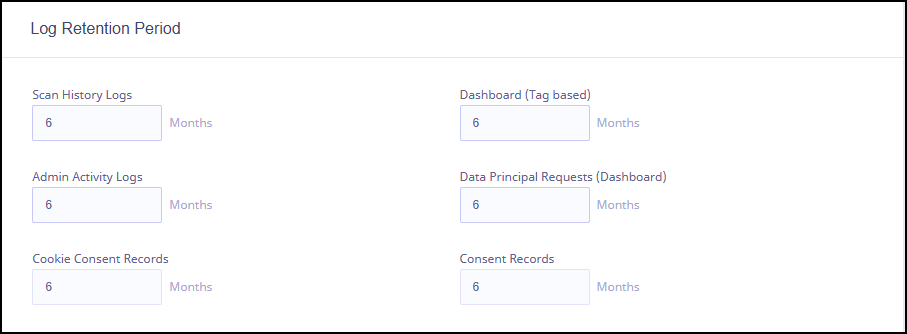
Log Retention Period
In this section, you can define how long logs should be stored before they are automatically deleted or archived.
OCR Configuration
Note ☛
The OCR Configuration tab will only be accessible if the tenant has obtained the necessary license for OCR.
The OCR Configuration can be enabled or disabled using the OCR Enabled toggle button. It is applicable to both devices and data sources, allowing separate configurations for each.
OCR Logs and Telemetry
| Toggle Button | Description |
|---|---|
| OCR Logs | The OCR logs must be enabled to resolve issues. |
| Telemetry | Send Telemetry. |
Applied Pre-processors
| Radio Buttons | Description |
|---|---|
| Default | The default pre-processor steps to be performed for achieving accurate and reliable text recognition results. |
| Custom | The custom pre-processor steps to be performed for achieving accurate and reliable text recognition results. You have the flexibility to modify these steps (enable/disable or changing the order) as per your preferences. |
| Do not process | No pre-processor steps to be performed. |
Note ☛
The OCR capabilities enable the classification of data using OCR techniques for server-side datasources like OneDrive, Amazon S3, and NTFS.
Language Packs
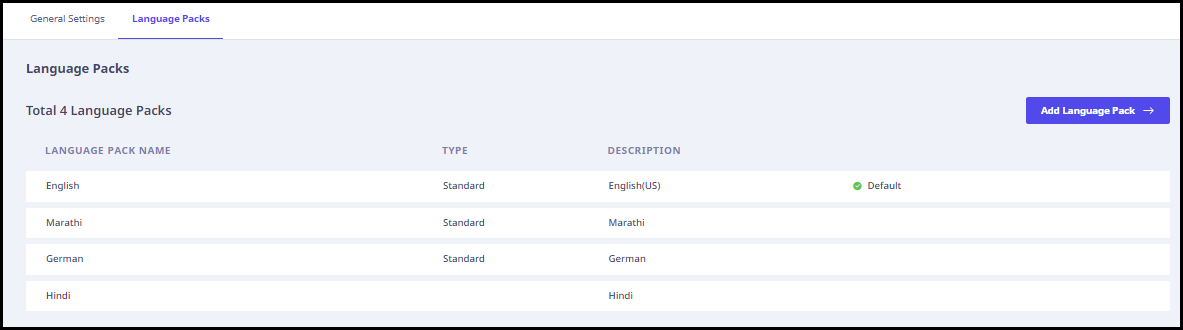
Multiple languages are supported in Seqrite Data Privacy. Users can select any language as required. On this page, the following information is displayed.
| Column name | Description |
|---|---|
| Language Pack Name | Language pack name. |
| Type | Language pack type whether standard or custom. |
| Description | Description, if any. |
If a language is set as default, a label will be visible in the column next to description. When you hover over each language pack, the following options appear on the far right in the empty space next to the Description column.
- Make Default: To set the language pack as ‘default’.
- Download: To download the language pack.
- Edit: To edit the language pack.
- Delete: To delete the language pack.
Note:
You can only delete the custom language packs. Standard language packs cannot be deleted.
Adding a language pack
To add a custom language pack, follow these steps.
- Log on to Seqrite Data Privacy portal. In the left navigation pane, Navigate to Settings > Language Packs> Add Language Pack. A new page appears.
- Fill the following information.
- Enter the language name.
- Enter additional information, if any.
- Upload a template for a new language.
- Download a template and add a new language pack.
- After filling these details, click Add Language Translation.
To change the application language, click the user profile in upper right corner. Click Change Language. From the drop-down menu, select the desired language and click Change.