

Once the respondents submit their assessments, those will be reflecting in the Approver’s dashboard. The same will also be notified via email.
As an approver, you review the respondent’s answers and flagged risks. Based on your analysis, you can approve, reject, or request more details before finalizing the assessment.
To review and finalize the assessment, follow these steps:
- Login to the Seqrite Data Privacy console.
- From the left navigation pane, go to Assessment Automation >> Assessments.
- Select the assessment and click
 .
. - To view the flagged risk for a question, click Risk Profile tab.
- Select verdict that is either Approved, Ask more details or Reject for each question.
- Select the assessment status that is Approved, Pending Remediation or Rejected and then click Submit Review.
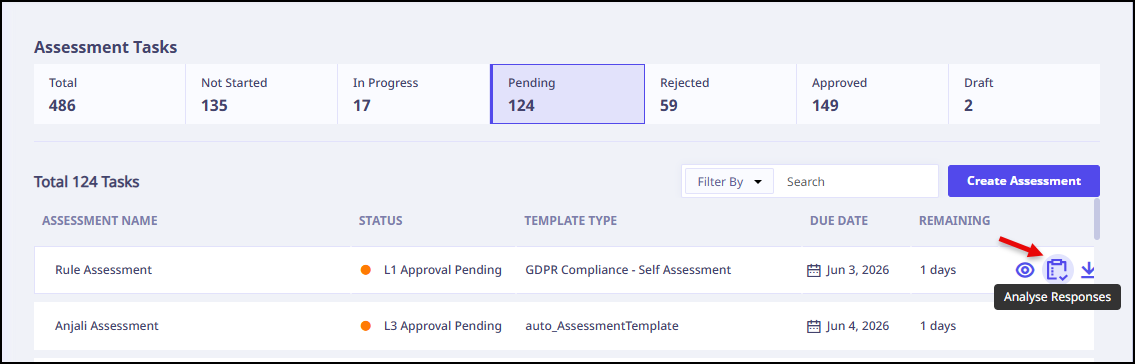
You can view response, status, comments and risk profile.
Note: Risk Profile tab is visible only if question has been flagged as a risk.
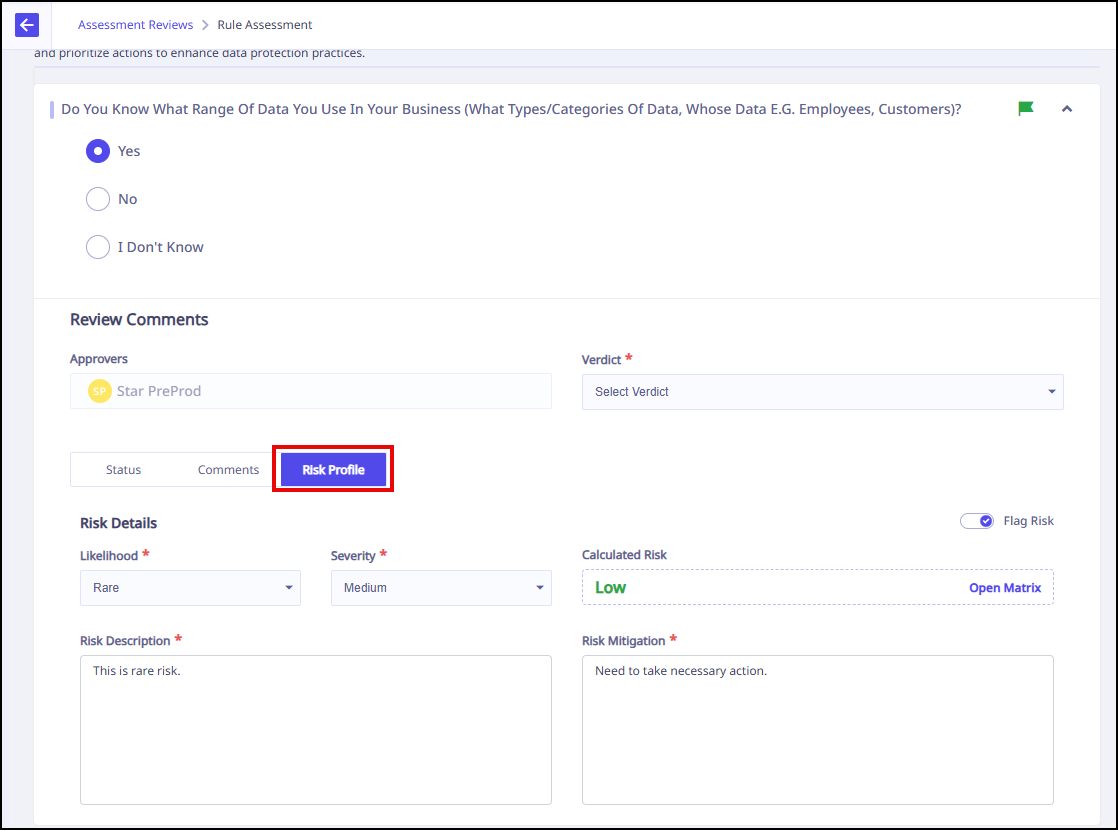
You can edit the risk details, if required.
Note: When an approver modifies the Risk Profile section of an assessment, the system now automatically sends notifications to the Assessment Owner, Respondent , and All approvers at lower approval levels .
Note: If the verdict is Ask more details, respondent will have to resubmit the answer.
Note: If the approver’s verdict is Pending Remediation, the respondent must review the feedback, update or resubmit their answers, and then submit the assessment again for approval.