

Creating An Application On Microsoft Azure With Microsoft Graph API
You need to sync Microsoft Azure AD users and their attributes for policy creation. For this you need to add another application on MS Azure with Microsoft graph API.
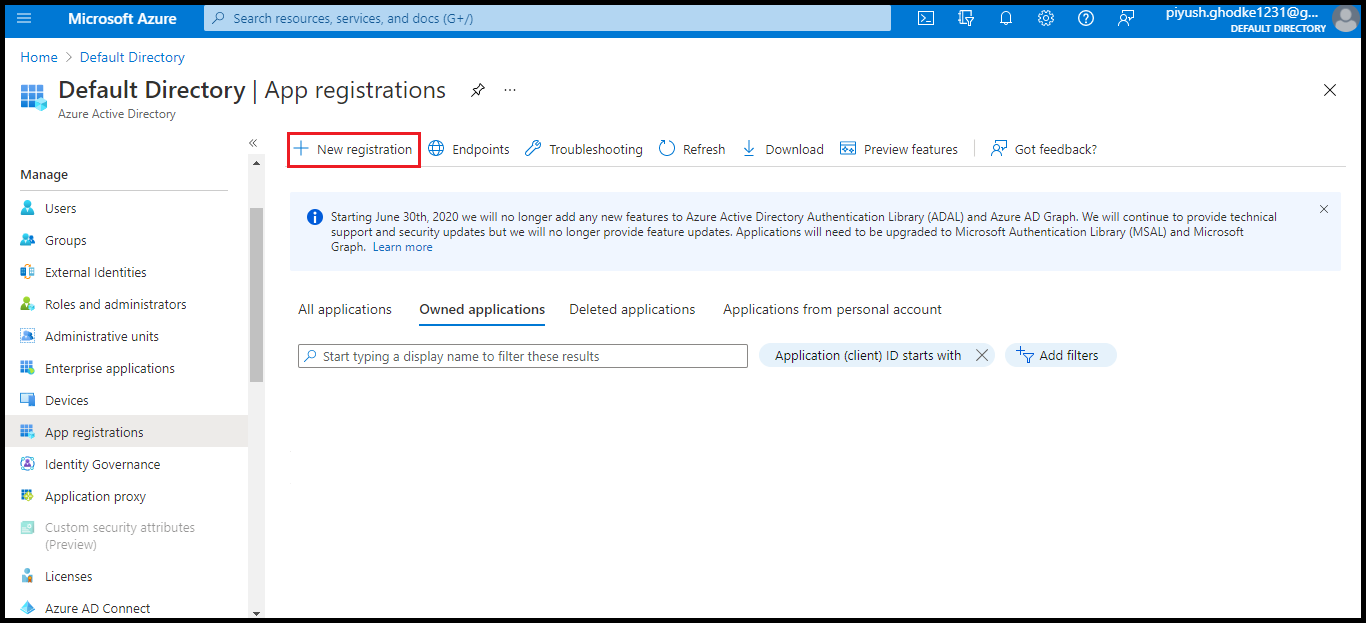
- Log on to the azure account with admin rights. Navigate to the Default directory and click App registrations in the left pane. Click New registration.
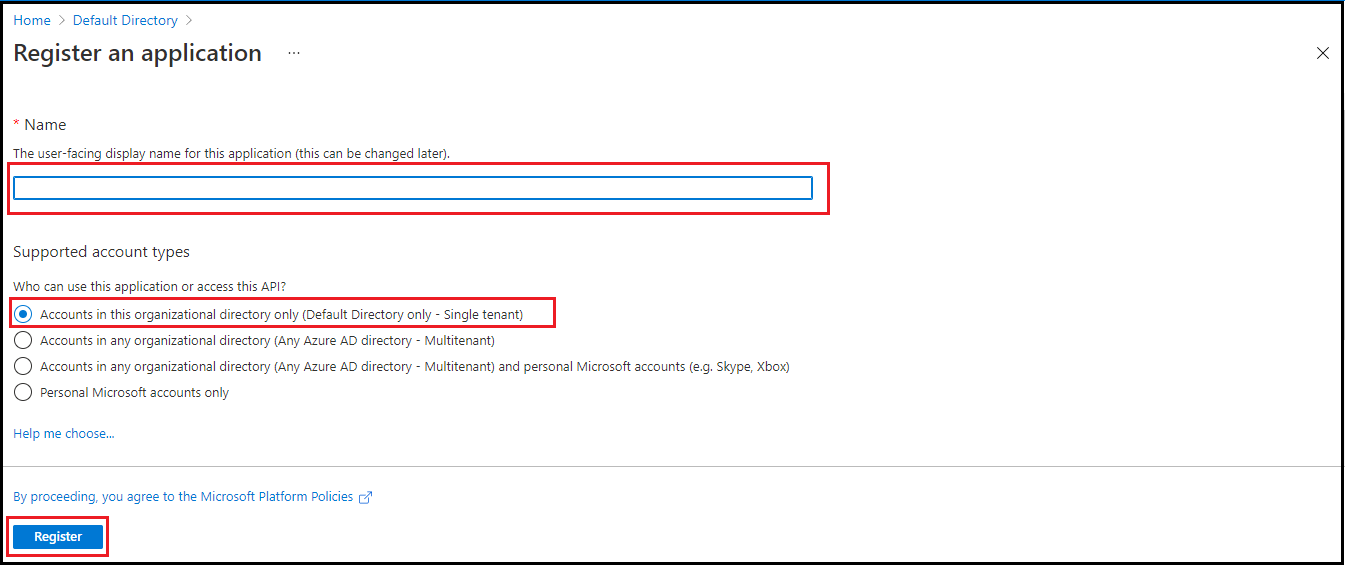
- Enter the application name and select Accounts in this organizational directory only option. Click Register button.
- On the Overview page, click Add a certificate or secret under essentials.
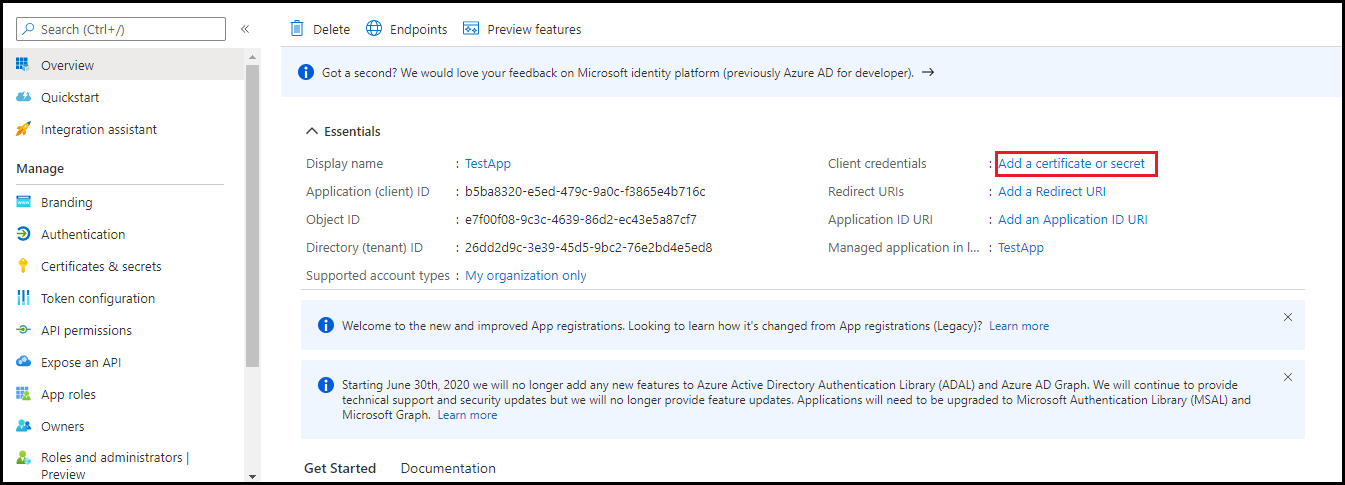
A new page is displayed.
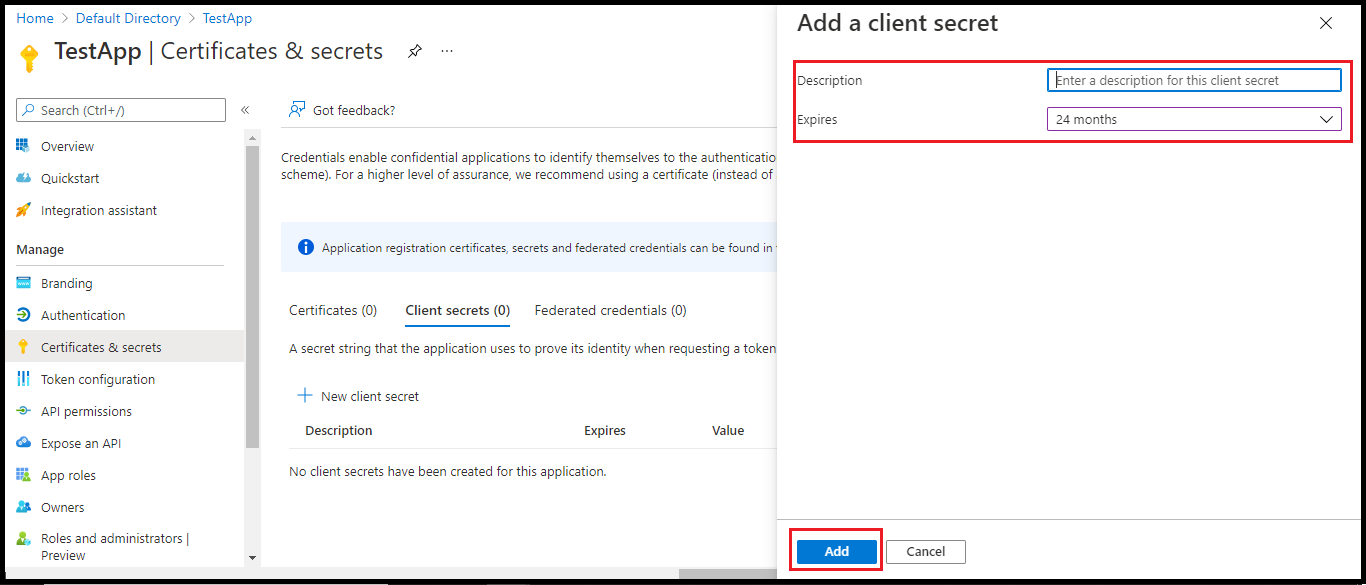
- Click New client secret.
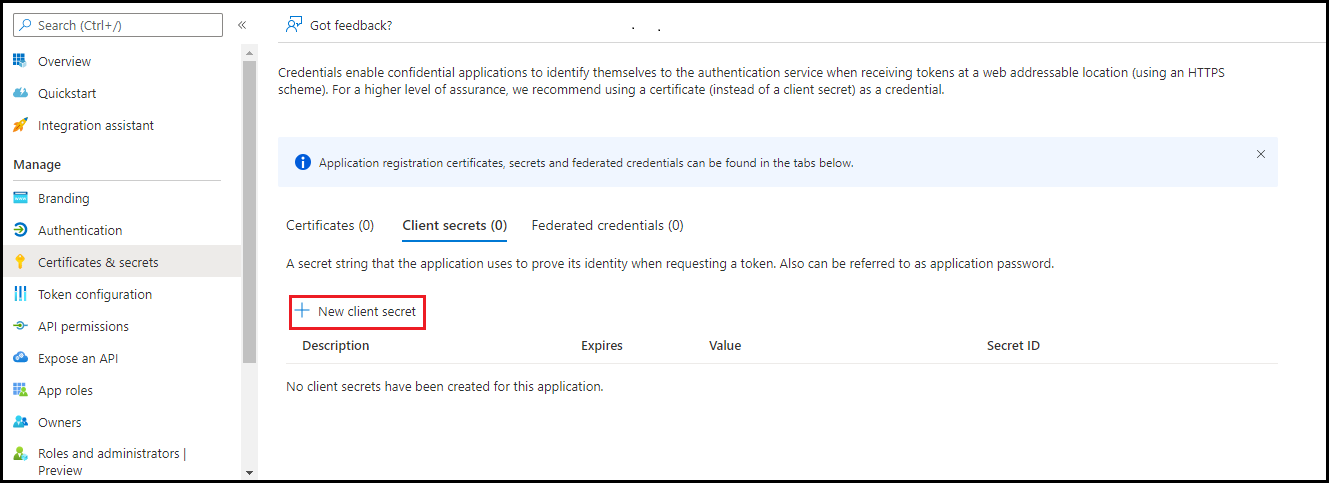
In the right pane, enter the description and select the expiry period.
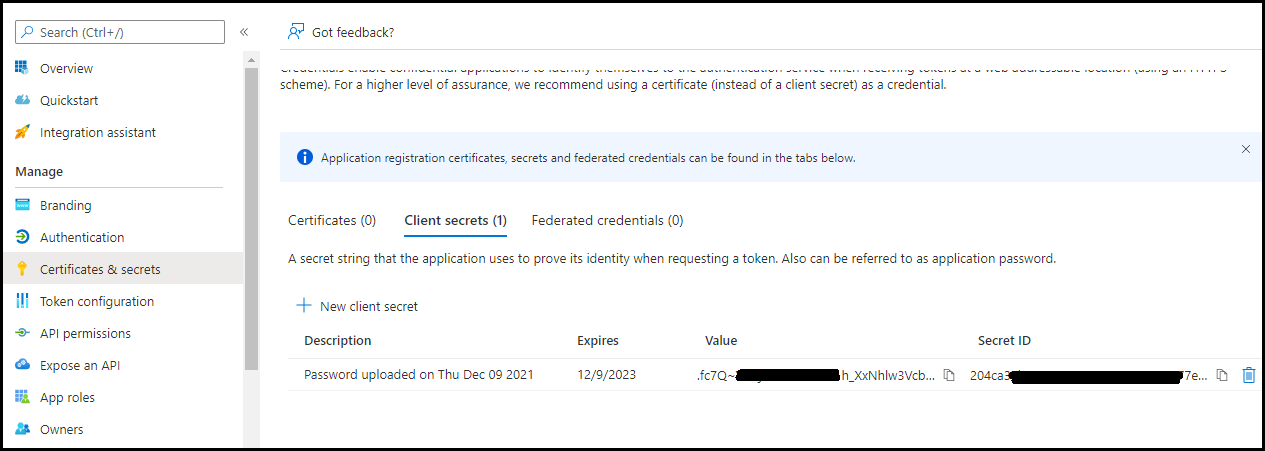
- Navigate to Certificates & secrets. Copy the secret value and secret ID for future reference.
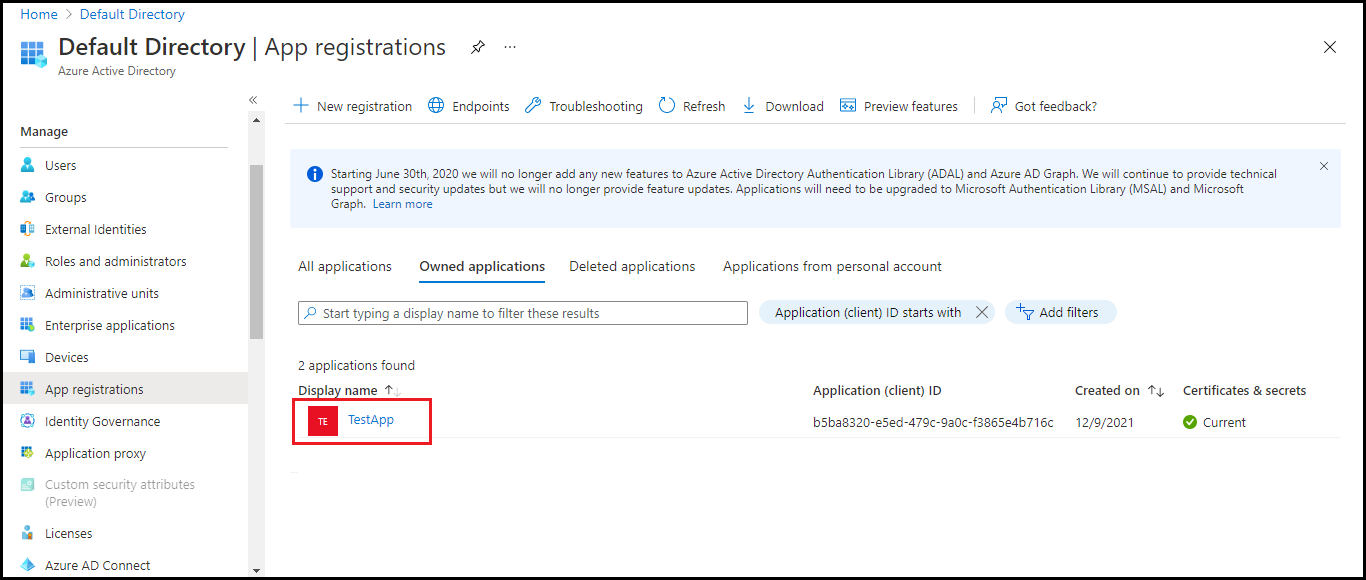
- Navigate to App registrations in the left pane. Click the application name.
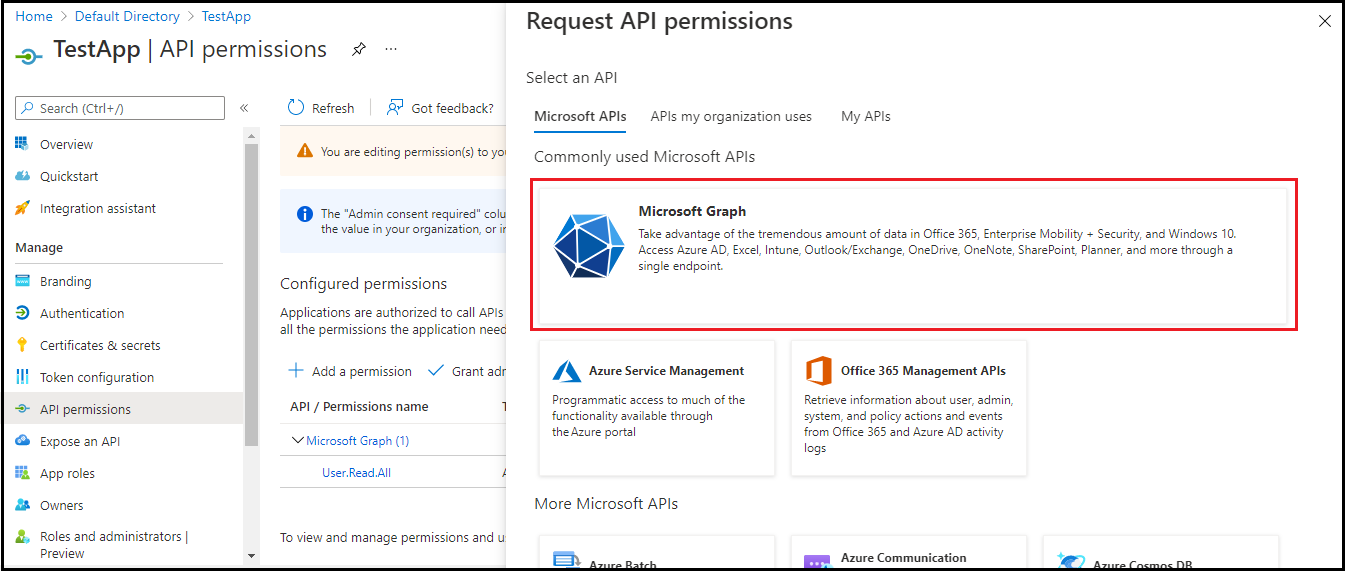
- Navigate to API permissions in the left pane and click Add a permission.
- In the right pane, click Microsoft Graph.
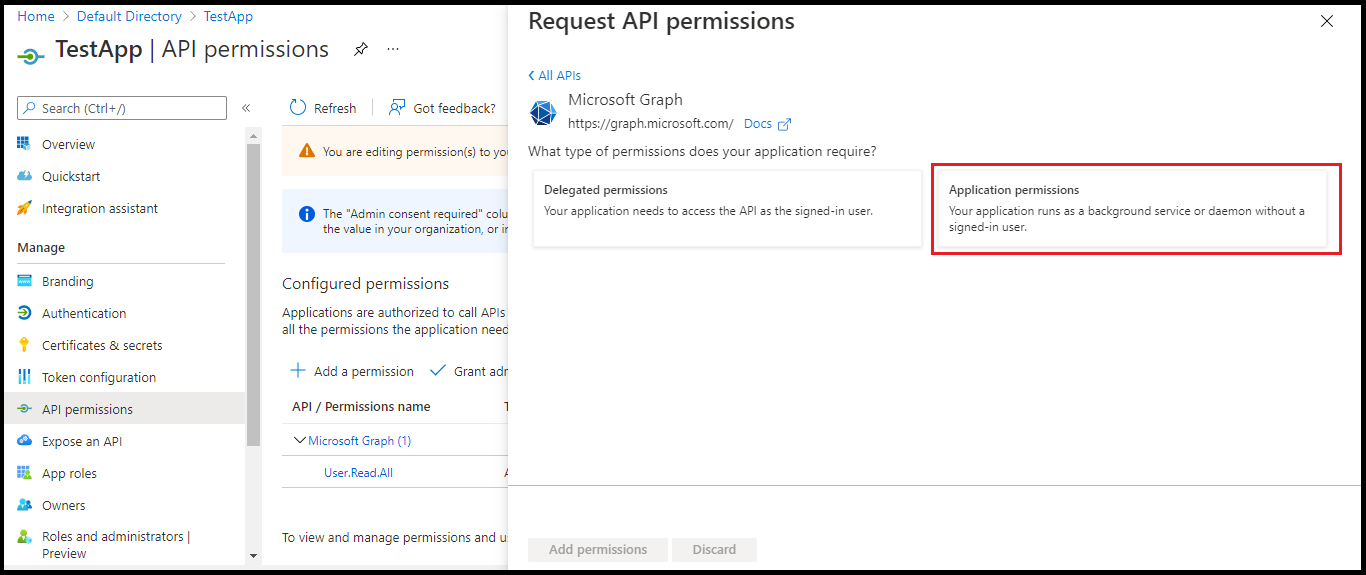
- Click Application permissions.
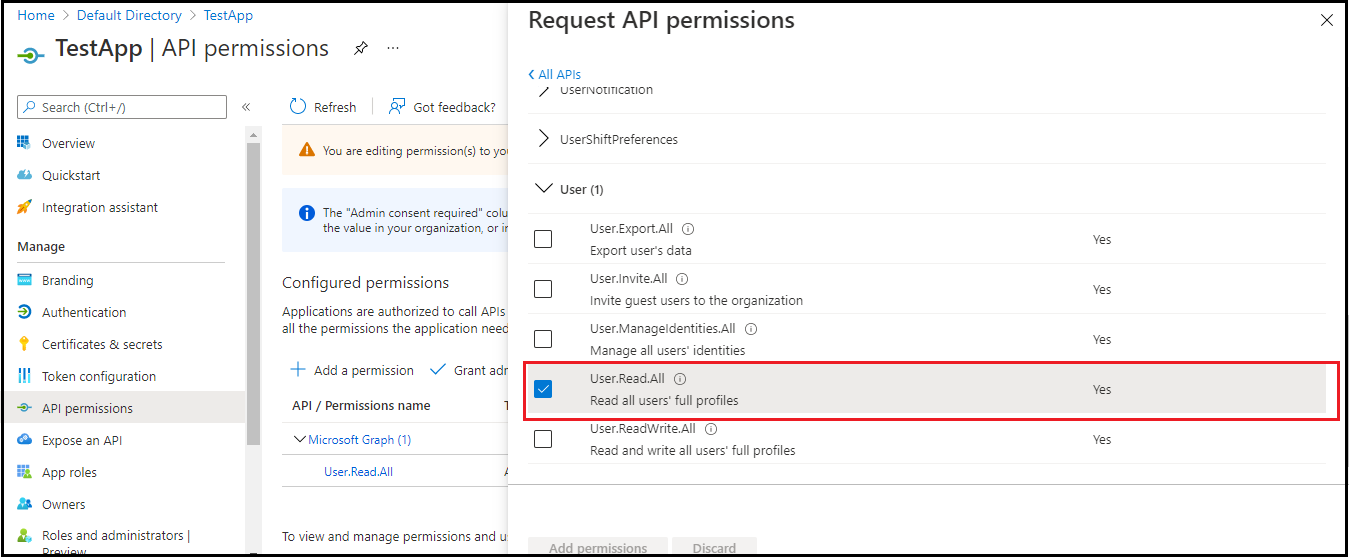
- Under the User tab, select User.Read.All permission.
- Under the directory tab, select Directory.Read.All permission.
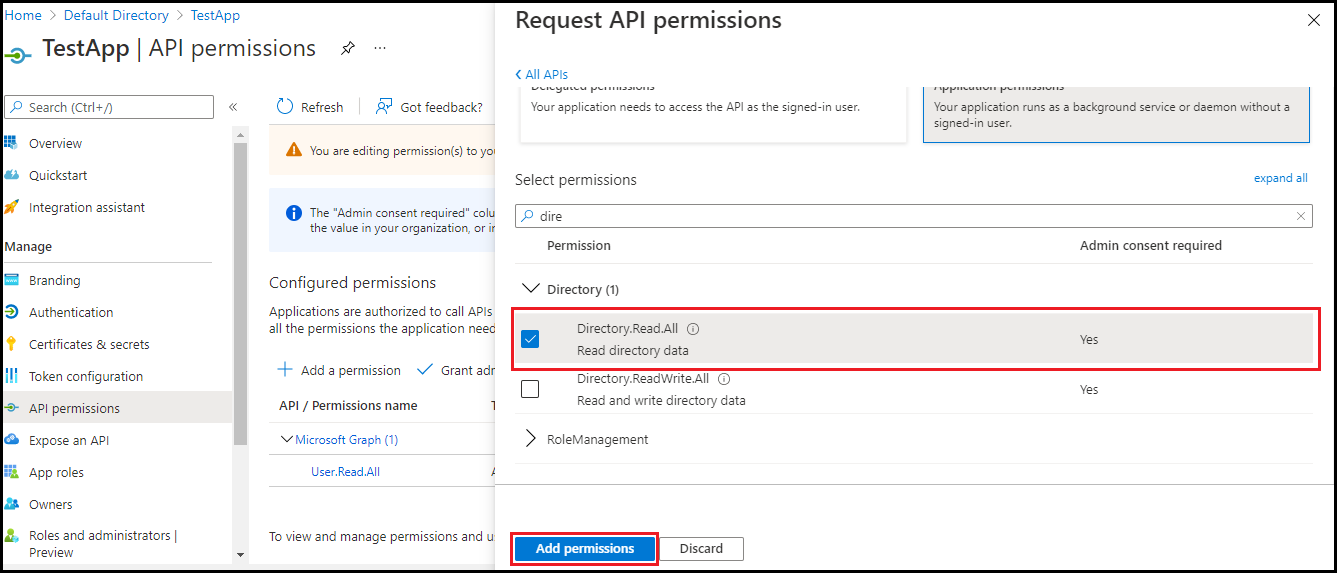
After selecting these permissions, click Add permissions.
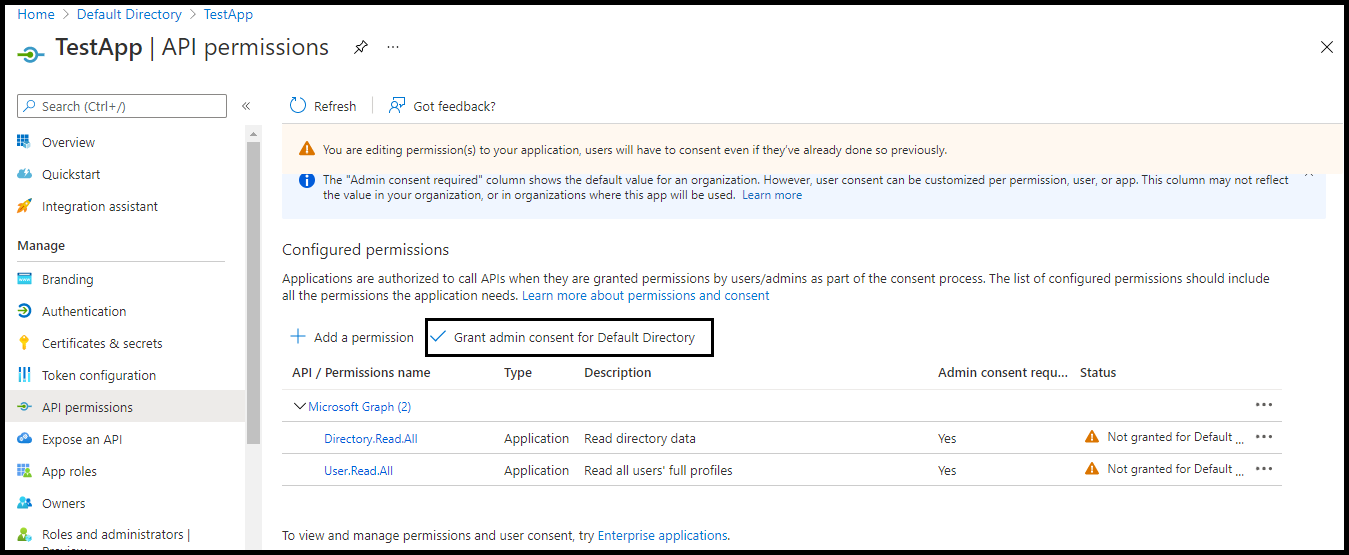
- On the API Permissions page, click Grant admin consent for Default Directory.
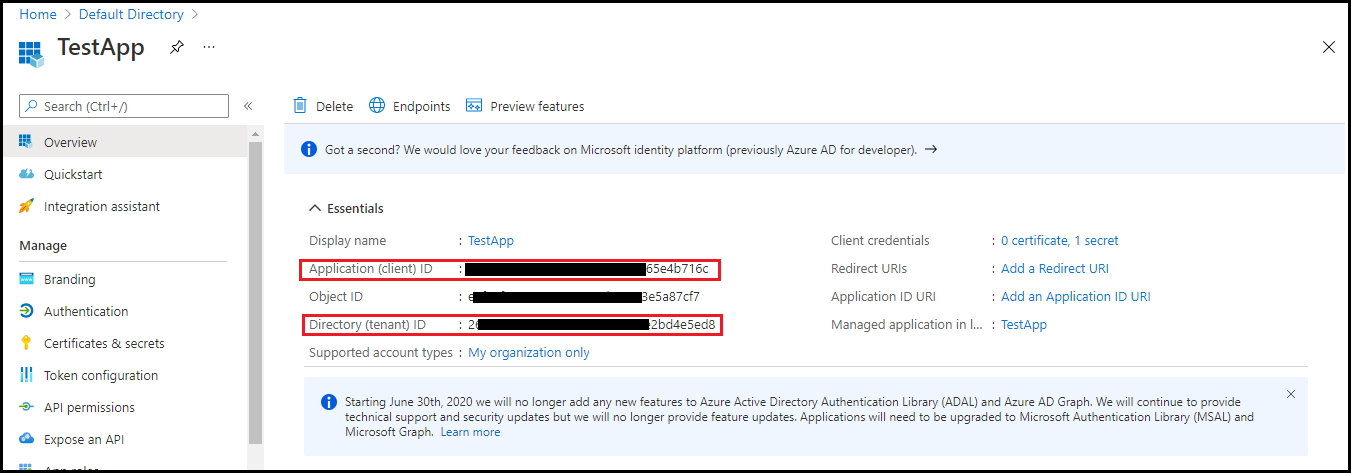
- Navigate to the Overview section of your Application and copy Application (Client) ID, Directory (Tenant) ID for future reference.
- Click Endpoints and copy OAuth 2.0 token endpoint (v2) for future reference.
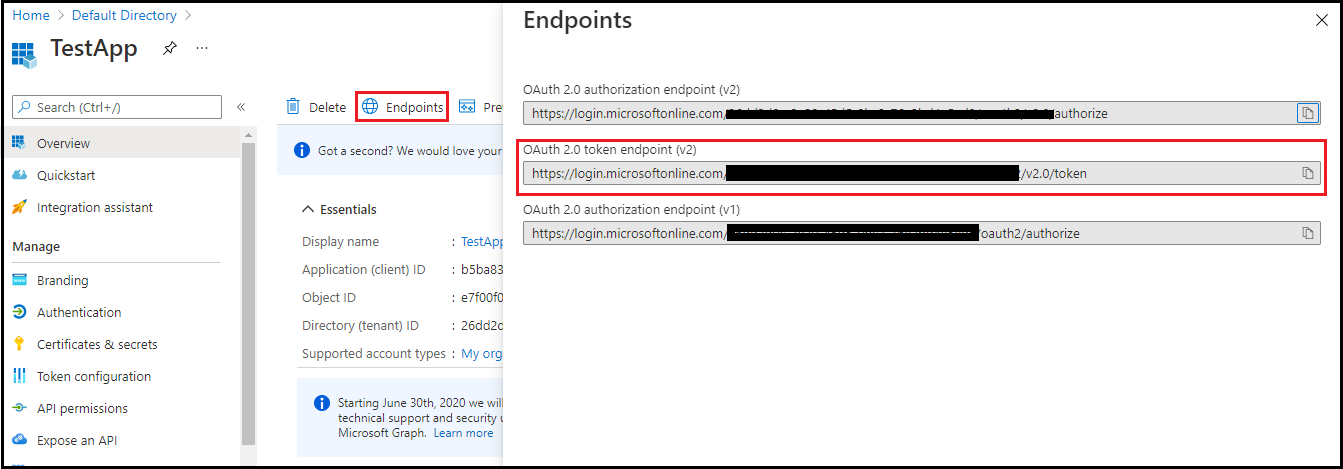
The Application (client) ID, Client secrets, OAuth 2.0 token endpoint (v2) are required for adding IdP during the onboarding process.